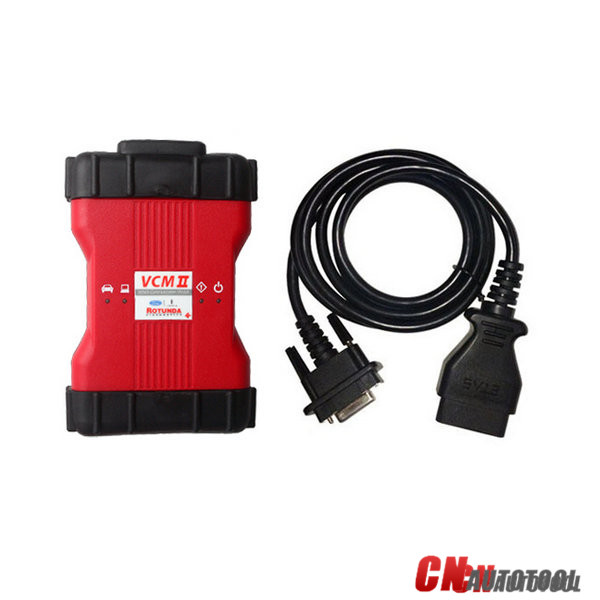
Latest Ford IDS V108.01 Full Software for
Ford VCM II support online programming released on Jan. 2018.
Software Version: 108.01, no need activation
Operating system: Windows XP/Windows 7 32/64 bit
Tested with all VCM2 SP177 series, Ford VCM2 2-in-1 clone and VXDIAG VCX NANO Ford: Never failed!!
Online programming: Supported! but you should have an account yourself.
Ford IDS v108.01 function: Confirmed!
1.Able to download the very latest calibration files/software from
Ford server if the network connection available at the time of
connecting to vehicles
2.Read and decode fault codes
3.Delete fault codes
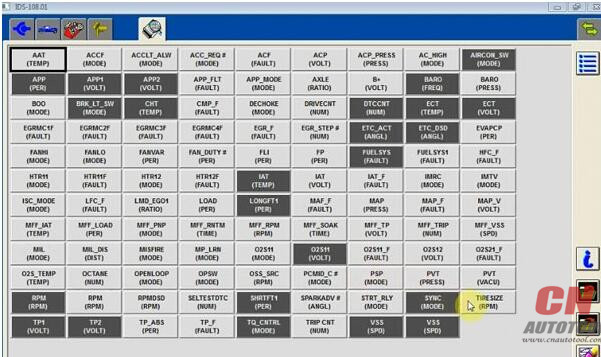
4.Display System current parameters in digital form
5.Combined displaying of data
6.Logs Keeping: write and keep of digital parameters in memory
7.Special functions: changing of permissible seeting of blocks, programming etc.
FAQ:
Q: Whether it can work with Ford VCM 1 Clone?
A: Yes, it can work with Ford VCM 1 clone
Q: Is this vmware or native
A: This is native, install on new and clean windows xp/7
How to install Ford IDS V108 step by step?
Preparation:
1. Please backup the important files on the desktop and disk C because the next operation will cover the content in the disk C.
2.Disable both local area and wireless network connection
3. If your computer hard drive only has one partition, please prepare
a 16 GB U flash drive, if has 2 partitions, please unzip the software
of CD into another partition except disk C
Step 1: Recover System
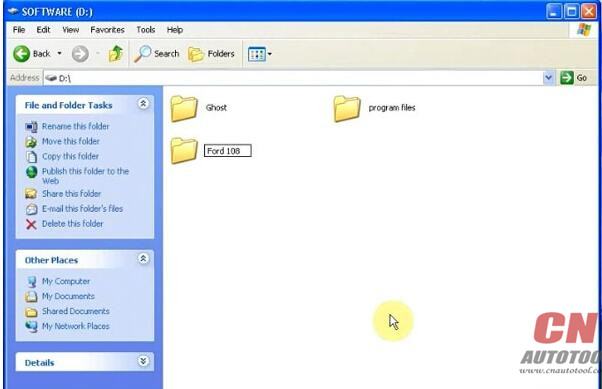
Open Software D (Disk D)

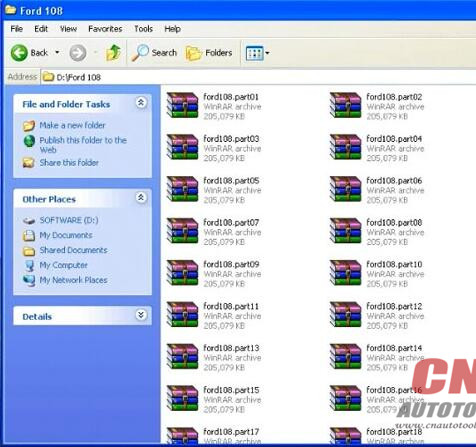
Create new folder Ford 108

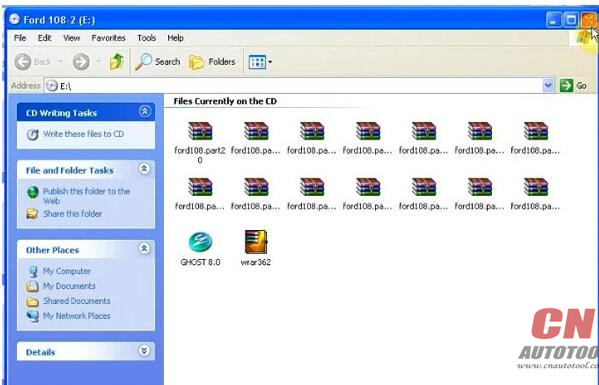
Copy all zip file on Ford 108-2 software CD to Ford 108 folder
Eject Ford 108-2 DVD-ROM to DVD/CD-RW Drive

Copy all contents to Ford 108 folder again
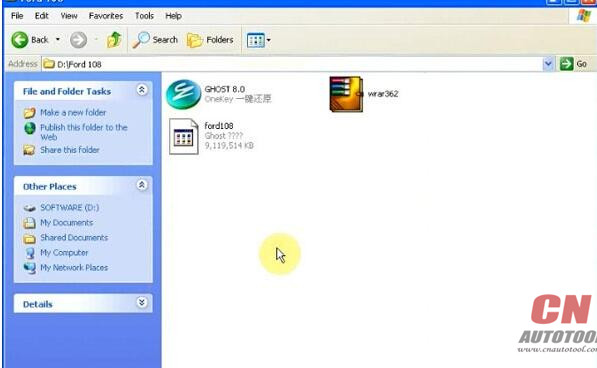
Extract ford108.part01 zip files to Ford 108 folder

Then delete all other zip files, ford108.part01-ford108.part33
(only 3 files left)
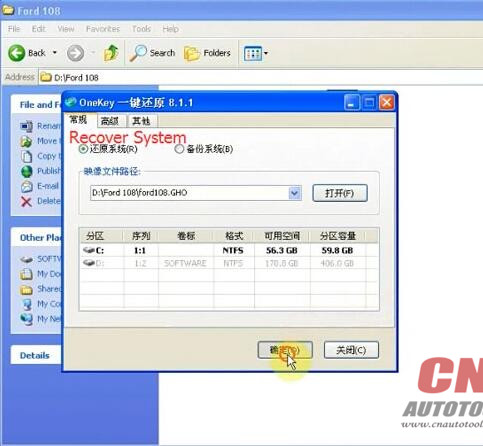
Open Ghost 8.0

Recover system, choose destination D:/Ford 108/ford108.GHD
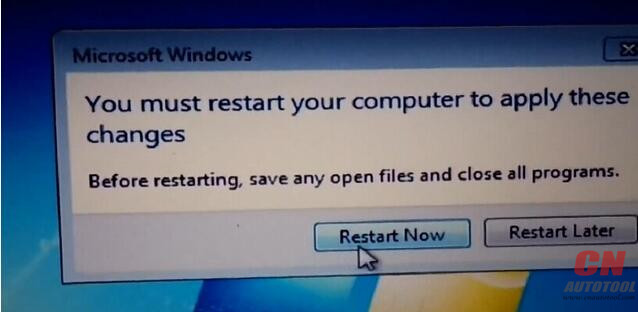
Restart computer and recover system

Step 2: Install Ford IDS 108 Setup

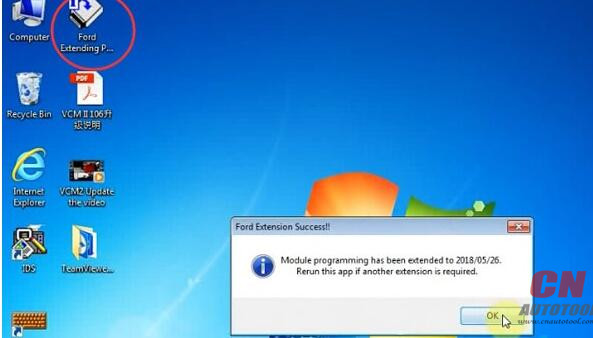
Run Ford Module Programming Limit as Administrator
Ford Extension Success, press OK
Module programming has been extended to 2018/05.26

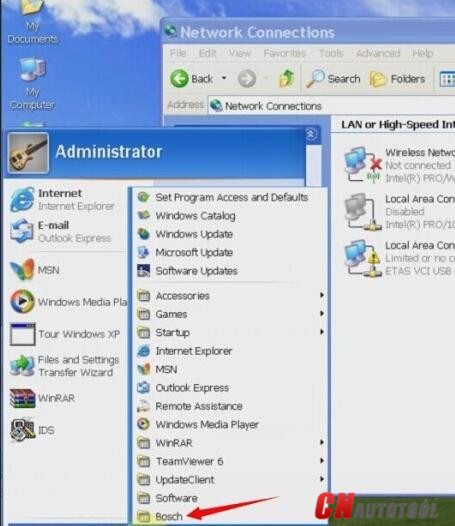
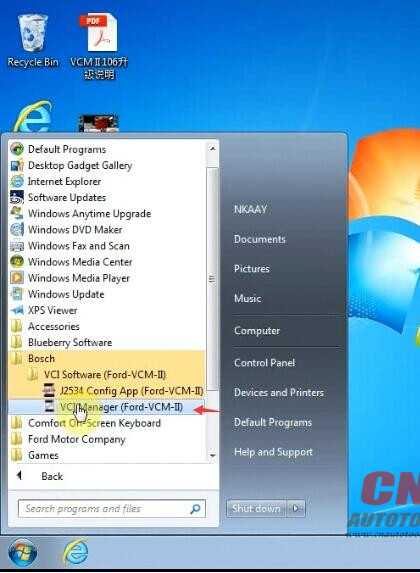
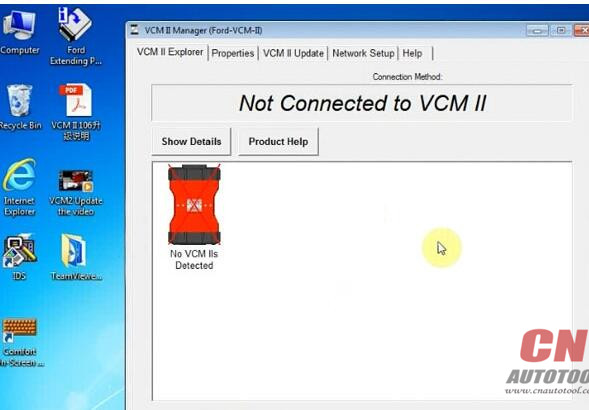
Click on Start menu->All Program->Bosch->VCM Manager (Ford-VCM-II)
If system prompt PC software initialization error, press OK to ignore
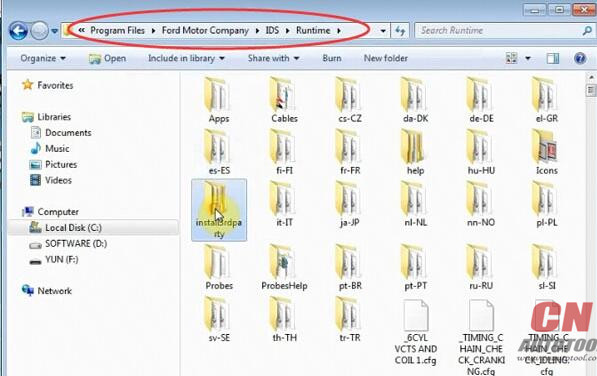
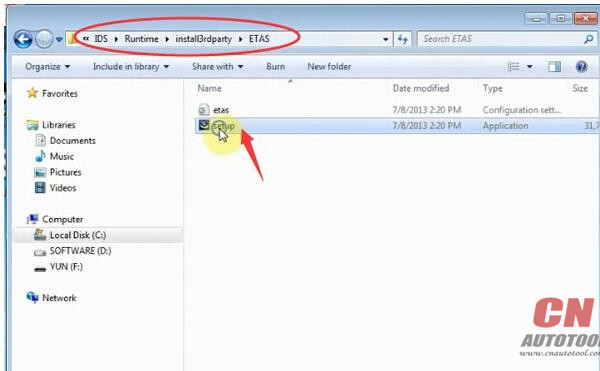
Open Disk C/Progam Files/Ford Motor Company->IDS->Runtime->install3rdparty->
ETAS, Run setup as Administrator


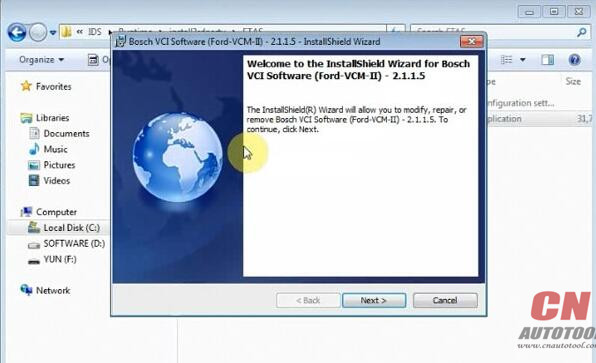
Install Bosch VCI software Ford VCM II

click Next
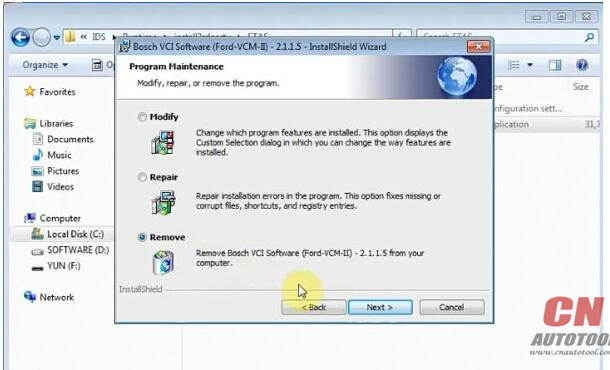
Select Remove Bosch VIC software from your computer, click Next

Press Remove
Click Finish
Again run setup as Administrator
click Next

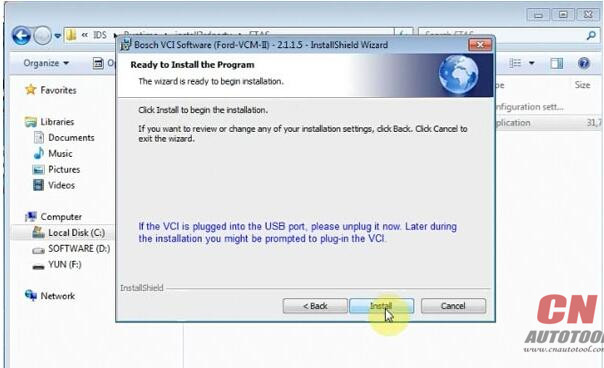
Ready to install the program
Click Finish
Install setup completed.
Step 3: Make Connection
Click Start menu->VCI Manger (Ford-VCM-II)

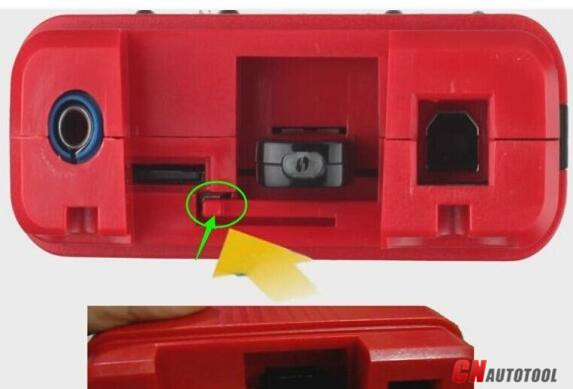
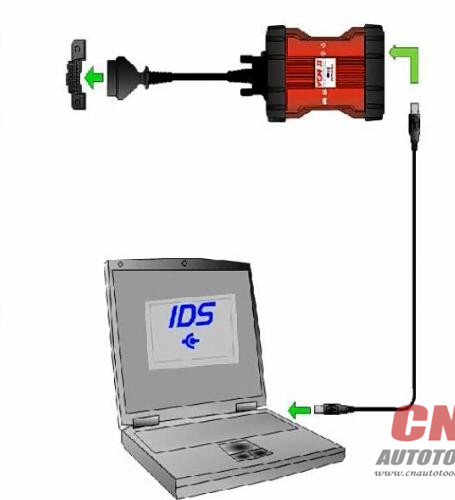
Connect VCMII with computer follow the diagram below

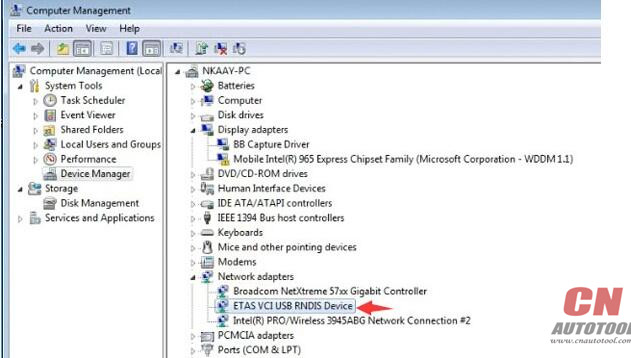
Open Computer->Manager->Device Manger->Network adapters->ETAS VCI USB RNDIS Device
to check connection is built

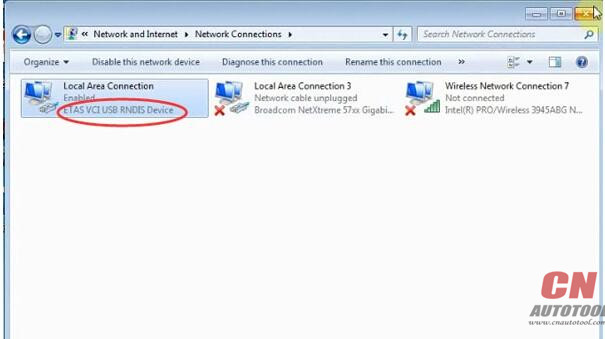
Open Network and Sharing center->Change adapter settings
Make sure you have disable both local area and wireless network connection

Step 4: Run software
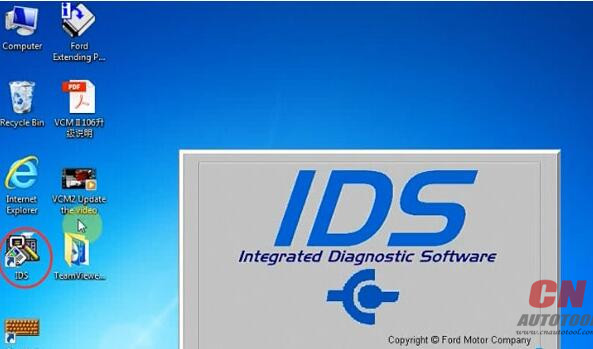
Open Ford IDS v108 software on desktop

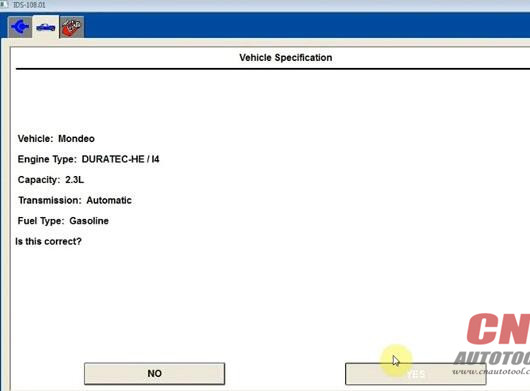
Network test, gathering vehicle data

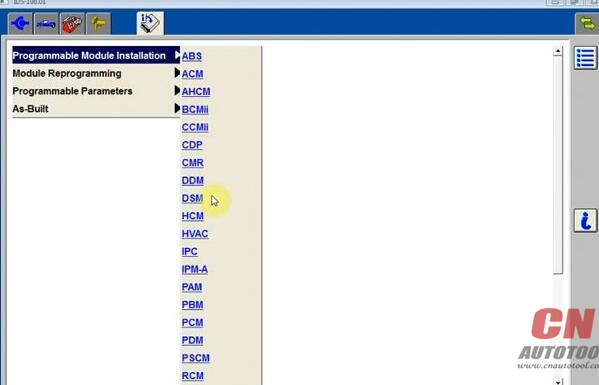
check language options, programming modules and options


Done.