显示标签为“chrysler scan tool”的博文。显示所有博文

2022年10月30日星期日

Witech Micropod2 Program 2005 Chrysler 200 All Keys Lost


Confirmed! wiTech Micropod 2 is able to do online programming to Chrysler including ECU programming and key adding even when all keys are lost. Here you go.


Purpose: Micropod 2 clone programs new key fobik to Chrysler 200 when all keys are lost

Car: 2015 Chrysler 200 (The 2015 Chrysler 200, along with other Fiat-based models like the Jeep Renegade, Jeep Cherokee, and Ram Promaster, are all equipped with a rolling PIN Code.)


What you need:

Locksmith Identification Number (LSID through NASTF)

Proper keys to be programmed

PIN Code

Laptop

MicroPOD II good quality clone or the genuine

wiTECH diagnostic application


Before you begin the programming process, you should the Key Code (key cut code) and Authorized PIN (key programming).


VERY VERY VERY IMPORTANT:

    You must be online to program the key with Micropod 2 clone.
    You can pull the PIN Code with OBDSTAR F104 key tool.
    If you input the wrong code for 3 times, it locks the BCM and you cannot service the vehicle for 24 hours.
    The key is one-time programmable. Once married to the vehicle it is locked to the car forever. The key can be erased from the car and put back into the same car, but can’t be switched to another car.
    The placement of the key during initialization is important. It needs to be placed either behind the shifter or in the center console.


How to program fobik with wiTECH app:


Step 1:

Plug the MicroPOD II adapter into the OBD port and connect the USB cable from the device to your laptop. This wakes the BUS on the car.


Step 2:


Manually enter the VIN of the vehicle. This gives you access to the module list.  Select the RFH (Radio Frequency Hub) module. This is the module where the key is registered.


Step 3:


Next select “Miscellaneous Functions,” then “Program Ignition Fobiks.”  At this point, you are prompted to enter the VIN again, followed by the four-digit PIN Code.


Step 4:


After the four-digit pin is entered you are prompted to hit continue to “Program Ignition FOBIK.” Once you hit continue you must press the UNLOCK button on the FOBIK within 30 seconds (the FOBIK needs to be located near the center console during this procedure).


Step 5:


Programming of the Ignition FOBIK is now successful. The new key key is accepted into the car, and the ignition will now turn on and start the car. At this point, you also have the option to program a second key with wiTech application.


www.cnautotool.com


2021年11月7日星期日

About Witech MicroPod 2 V17.04.27 for Chrysler FAQs


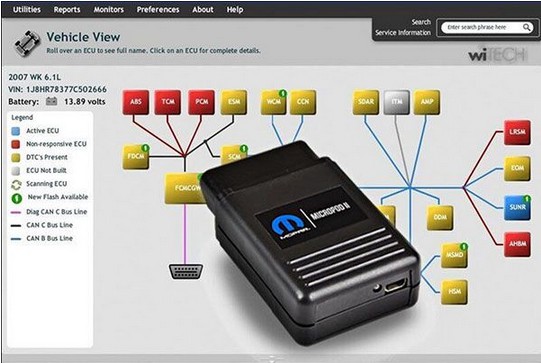
Multi-language wiTech MicroPod 2 V17.04.27 diagnostic and programming interface for Chrysler fits in your shirt pocket and provides 100% CAN coverage for Chrysler, Dodge, Jeep and Fiat.

Language : English, French, Spanish, German, Italian, Russian, Japanese, Korean and Chinese

Top 6 Reasons to Get wiTECH MicroPod 2 Diagnostic Tool:

1. the copy is 1:1 of the genuine, of high quality and good stability, its connector matches the car OBD plug perfectly.
2. With high-quality USB cable which transfer data stably and reliably
3. The package is anti-static, moisture-proof, anti-electromagnetic interference
4. Works with your current wiTECH software
5. No smart cables required
6. No drivers needed

WiTECH MicroPod 2 Diagnostic Tool Basic Info:
1.Works with your current wiTECH software Version: 17.04.27
2.Multi-Languages available: English, French, Spanish, German, Italian, Russian, Japanese, Korean and Chinese
3.PC-Based: Requires PC connection
4.Warranty: It can be returned and replaced for a new one within one year, if non-human damage.
5.Update: you could update when the newest software is released

New Chrysler Witech Micropod Ii Vci With V17 04 27 -5

V17.04.27 wiTech MicroPod 2 can work on Chrysler, Dodge and Jeep till year 2020. Here have collected some frequently asked questions from customer and offered the corresponding answers. Hope it’s helpful!

Q: Does the scanner MicroPOD II witech 2.0 also read the old Chrysler?
A: No, the Micropod 2 with WiTech 2.0 software will only work on most CAN compliant vehicles 2007 and newer, and some Chryslers back to 2004.For vehicles not covered by WiTech software you will need a DRB III or DRB III emulator.

Q: The communication is not stable when use wiTech MicroPod 2, how to do?
A: Check whether the OBD interface has been connected well or not. Or change another wiring cable.

Q: Which car model and year can be supported by V17.04.27 wiTech MicroPod 2?
A: Chrysler, Dodge and Jeep till year 2017 are supported.

Q: I connect micropod 2 with my laptop, but there is not green light, only flashes red light.
A: Please check whether you connect micropod 2 with your car or not?

Q: Does wiTech MicroPod 2 V17.04.27 support JEEP grand cherokee 2001 year?
A: Yes, it does.

Q: Can MicroPod 2 wiTech support online programming?
A: Yes, it can.

Q: Can wiTech MicroPod 2 V17.04.27 support flash BCM module? Other modules can? If have changed BCM module, can I backup BCM module by the software?
A: Online programming is supported, but cannot backup data.

Q: I want use wiTech MicroPod 2 to do 2002 Dodge Ram. Do I need DRBIII software?
A: If the new software cannot detect your car, you’d better choose old software.

Q: I can’t update the ECU without proper access by wiTech MicroPod 2.
A: You need to have an account from original factory so that you can program online.

Q: How to work online micropod2 through witech 17.04.27?
A:
-First you need to get a TechAuthority subscription, directly from TechAuthority or from AEtools (You can order a 3-day subscription).
-Then open the Witech program and when the Micropod 2 is detected click the “Next” button at the right bottom in the screen.
-In the next screen you have to enter your license credentials but the first option is only for dealers: username, password and dealer code.
-To use the TechAuthority account you need to click in the tab “change server” and select “Techauthority”, then you only need your username and passsword, not dealer code needed because TechAuthority access is intended for aftermarket or independent workshops.

With TechAuthority access we can use all functions in Witech 17.04.27 for diagnostics, calibrations and programming. We can Update or reprogram the PCM, TCM, TIPM… also we can program a new key or make “Restore vehicle options”, “Reset Ecu” and many other calibrations like “Learn ETC”, “proxy alignment”…, also we can install a new module and make a full flash or configuration. All of this is only possible for vehicles until 2017, for vehicles from 2018+ we need to use Witech 2.0.

Q: Does wiTech Micropod2 Clone Work on Chrysler 2020 2021?
A:
As titled, Can we dial with Chrysler (Dodge Jeep) 2020 2021 models with the Microod2 China clone wiTECH 1.0 (17.04.27)? Here are some clues. 2018 + FCA cars have new ecu SGW which need to be unlocked online WITECH 2.0 for diagnostic session or need to bypass SGW. wiTECH 1.0 will not be able to dial with 2018+ FCA models.


If you have any problems, don’t hesitate to contact us, send email to sale@cnautotool.com. FREE, Professional & Unlimited Technical Support, Factory Price!

2021年4月3日星期六

The Micropod II is the latest greatest from the Chrysler family of Dealer Level Scan Tools


The Micropod II comes with the Tech Authority one year programming license which also includes, Subscription includes access to perform Module Re-Flash Programming, TSB’s wiring diagrams, repair information,and much more.
42-2
Tech Authority Subscription works with Chrysler wiTech MicroPod 2 and Emulator, also wiTECH application and Scan Tools running wiTECH application which includes DRB II Emulator, Star Mobile, VCI Pod, and MicroPod 2 hardware devices.

The new Car Diagnostic Tools Chrysler MicroPod 2 comes with wiTECH application, wiring diagrams, repair information, Re-Flash programming, and more! This tool is the Next Generation Chrysler Scan Tool for “CAN” Bus Models and is a direct replacement for wiTECH VCI POD. Supports all the latest technologies and vehicle platforms including the NEW 2014+ Dodge RAM ProMaster and 2014+ Jeep Renegade with No extra drivers or No extra smart cables.

New MicroPOD II comes with wiTECH application and 1 Year Tech Authority Subscription for TSB’s, wiring diagrams, repair information, Re-Flash programming, and more!

https://youtu.be/wwG8tekyZWs

WiTECH MicroPod 2 Diagnostic Tool Basic Info:
1.Works with your current wiTECH software Version: 17.04.27
2.Multi-Languages available: English, French, Spanish, German, Italian, Russian, Japanese, Korean and Chinese
3.PC-Based: Requires PC connection
4.Warranty: It can be returned and replaced for a new one within one year, if non-human damage.
5.Update: you could update when the newest software is released

Multi-language wiTech MicroPod 2 Diagnostic Programming Tool V17.04.27 for Chrysler
MADE BY MOPAR (CHRYSLER) and OEM, the microPOD II is small in stature but  offers 100 percent CAN coverage for Chrysler, Dodge, Jeep, and Fiat (North America), including  latest 2014 Dodge Ram ProMaster, 2015 Jeep Renegade  and 95% of non-CAN.


Package includes:

Package 1:
1pc x MicroPOD II Interface
1pc x USB Cable
1pc x Second hand DELL D630 Laptop with software ( for Chrysler, Dodge, Jeep )

DELL D630 Laptop: 
Used: An item that has been used previously. The item may have some signs of cosmetic wear, but is fully operational and functions as intended.

Brand:  Dell

Type:  Laptop/Notebook

Screen Size:  14.0

Memory (RAM):  2000 Processor Type:  Intel Core 2 Duo

Primary Drive:  DVD+/-RW Processor Speed:  1.80 GHz

Processor Configuration:  Dual Core

Memory: 4GB
Package 2:
1pc x MicroPOD II Interface
1pc x USB Cable
1pc x Second hand Lenovo T420 Laptop with software ( for Chrysler, Dodge, Jeep )

Lenovo T420 Laptop:

Brand: Lenovo
Condition: Used
Type:  Laptop/Notebook
Screen Size:  14.0
Processor Type:  Intel (R) Core(TM) I5-2520M CPU
Processor Speed:  2.50 GHz
Processor Configuration:  Dual Core
Memory: 4GB
Compared with other laptop, this one is better quality and run faster.

2020年11月26日星期四

How-to Configure a Wireless Profile on a microPod 2

 ATTENTION: Prior to configuring and updating your microPOD, please follow Knowledge Base (KB) article Steps to Associate microPods to Service Technician .

Note: If this is a new microPOD, or it has never been used with wiTECH 2.0, you will have to run the MicroPOD Setup Utility. This KB article will show you how to do that: How-to Setup a MicroPod II for wiTech MicroPod 2

Note: If you are looking to connect your microPOD to a Proxy Server instead of a regular wireless connection you will want to follow the steps listed in the following article: How-To Configure a MicroPOD II to a Proxy Server

1. On the PC, open the microPOD Setup Utility and leave the microPOD Setup Utility running in the background.  Only open the microPOD Setup Utility, do not select Continue in the Utility.  (the microPOD Setup Utility allows the microPOD to communicate with the wiTECH 2 servers through the PC’s internet connection)

2. If the microPod Setup Utility requires an update, please go ahead and allow the update and then relaunch the utility.

3. Connect the microPOD to your computer via the USB cable you were provided.

4. Using an internet browser, login to your wiTECH 2 account at https://login.n.fcawitech.com

5. If required, complete software updates to the microPOD device.

6. Click on the gear in the vehicle selection screen.
49-1

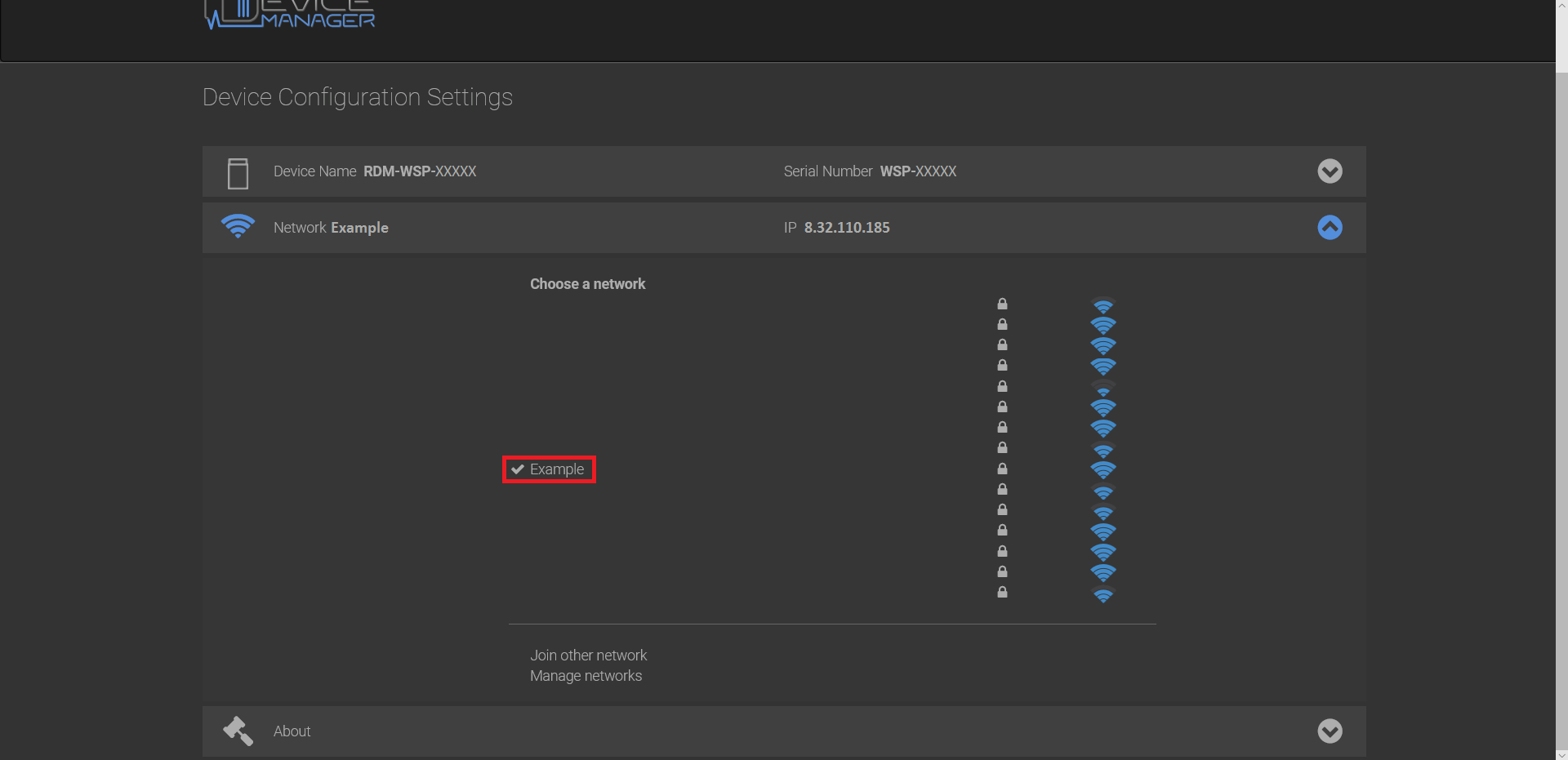
7. Click on the downward facing arrow on the row for Network.

Reminder: Your Auto Scanner Tool microPOD will continuously look for a network.
49-2

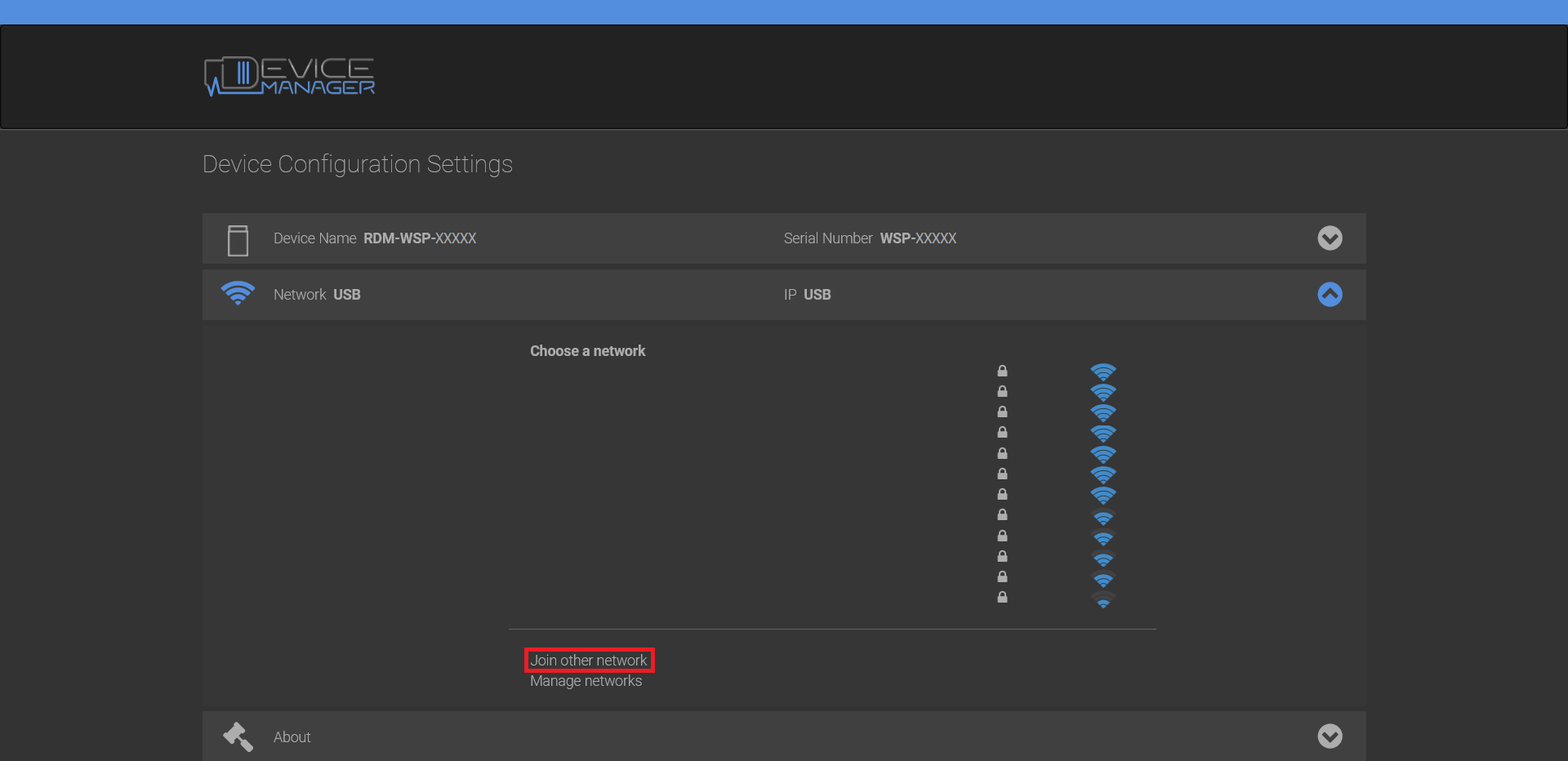
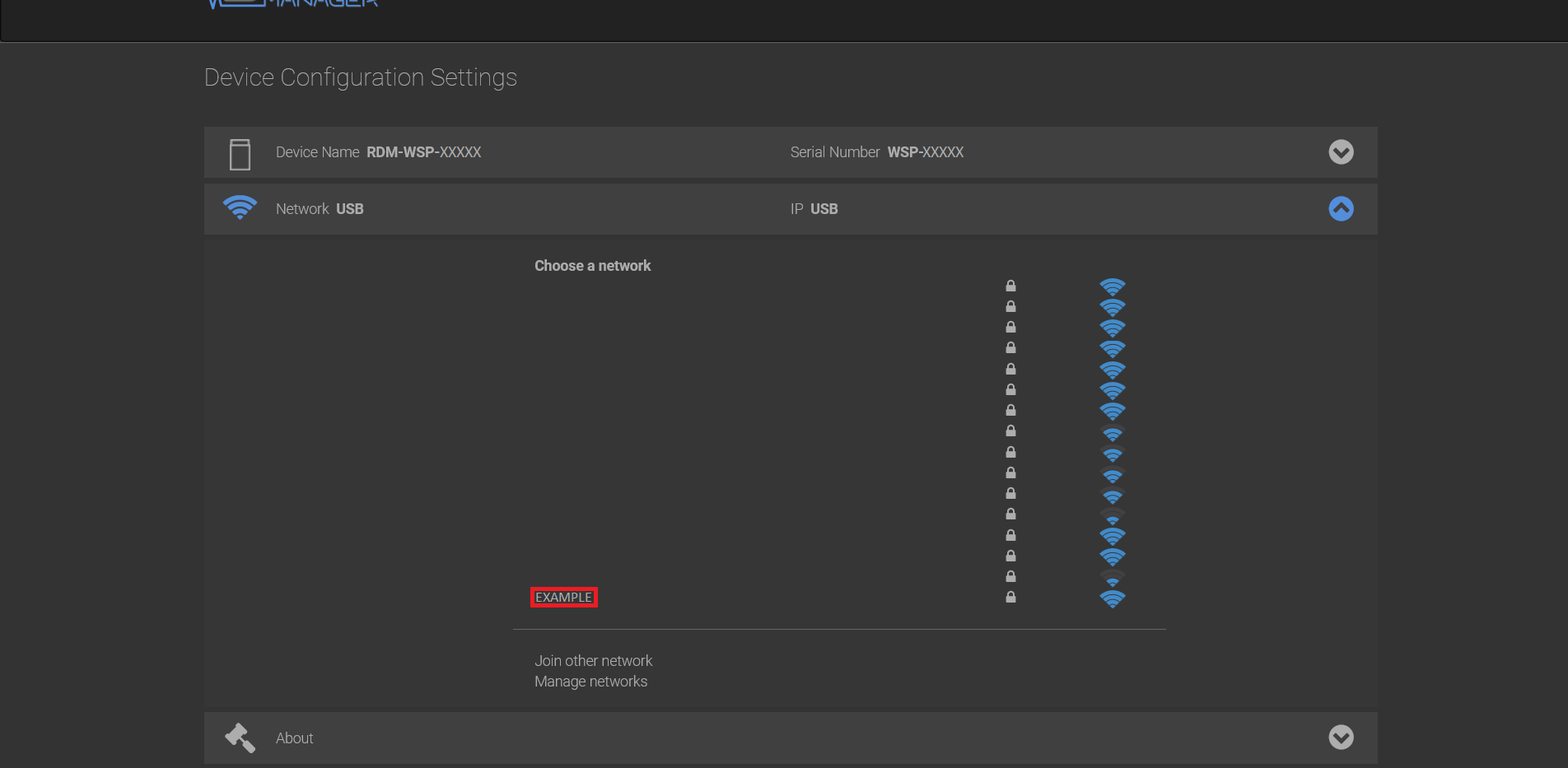
8. Click on the SSID of the network you would like your microPOD to be connected to.

9. If you would like to connect to a hidden network or a network that is not displayed, then you can click on “Join other network” to manually enter your SSID.

49-3
49-4

10. Enter your network’s password.

11. Click the “Connect” button to complete the process or click “Cancel” to exit without saving.

49-5

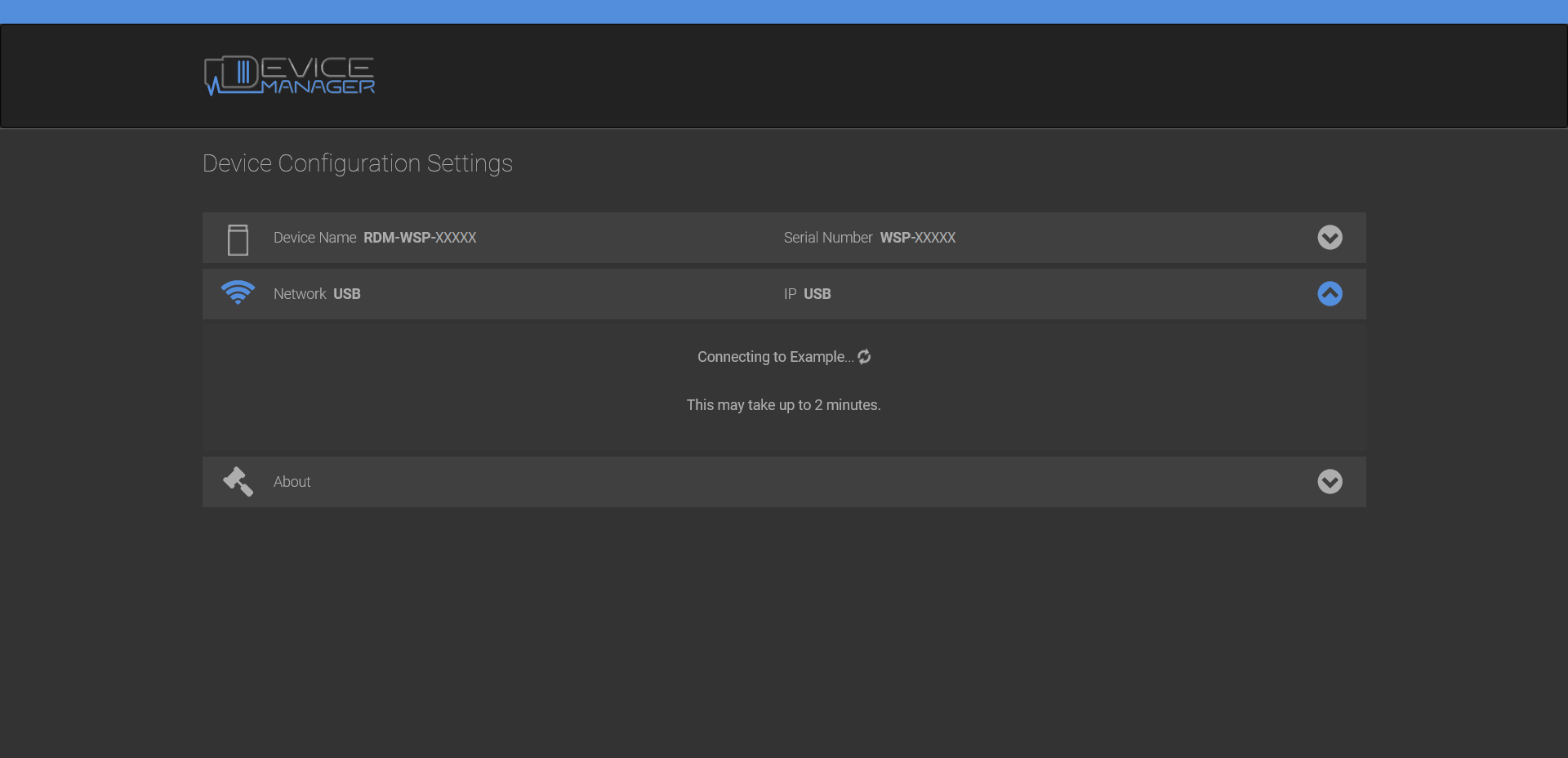
12. Once you have done this the microPOD will attempt to connect to the network.

49-6

13. If your microPOD is correctly connected to your network then you will see a check-mark next your network’s SSID.

49-7

14. The microPOD device is now connected to wireless.  Close the Device Configuration Settings tab and the microPOD Setup Utility.