显示标签为“MaxiIM IM608”的博文。显示所有博文

2022年6月29日星期三

How to pair the MaxiFlash with the IM608 Tablet?


 How to pair the MaxiFlash with the autel maxiim im608 auto key programmer?
1. Power on the tablet.
2. Insert the 16-pin vehicle data connector of the MaxiFlash to the vehicle data link connector (DLC).
3. Tap the VCI Manager application on the MaxiFlash Job Menu of the tablet.
4. Select BT from the connection mode list.
5. Tap the Scan button at the top right corner. Now the device starts searching for available pairing units.
6. The device name may display as MaxiFlash suffixed with a serial number. Select the appropriate device for pairing.
7. When paring is successfully done, the connection status displayed to the right of the device name is shown as Paired.
8. Once paired, the VCI button on the system Navigation bar at the Connection LED on the MaxiFlash illuminates solid blue. This signifies that the tablet is connected to the MaxiFlash, and is ready to perform vehicle diagnosis.
9. Tap the paired device again to unpair it.
10. Tap the Home button on the top left to return to the MaxiIM Job Menu

2021年12月29日星期三

2015 BMW 528i Battery Register Replacement by Autel IM608


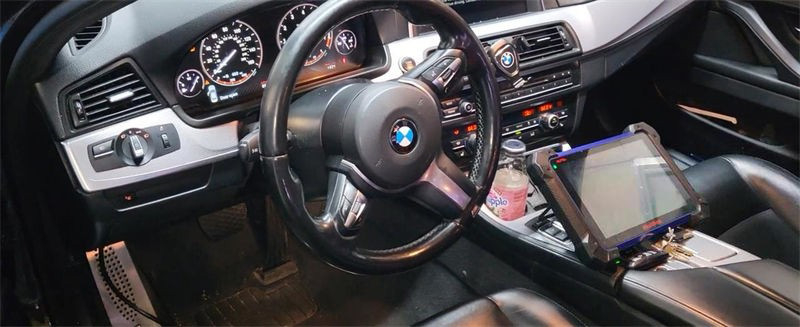
This is a , and I’ve changed a new battery aftermarket. So I wanna try if this Autel MaxiIM IM608 scan tool can do BMW battery replacement & registration.
2015-BMW-528i-Battery-Register-Replacement-by-Autel-IM608-1
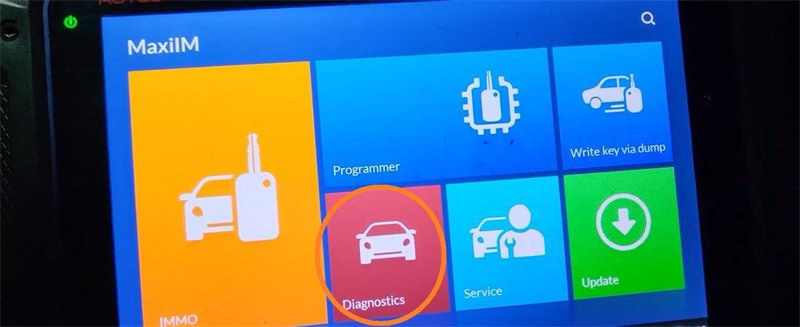
Plug Autel IM608 connector into OBD, go access

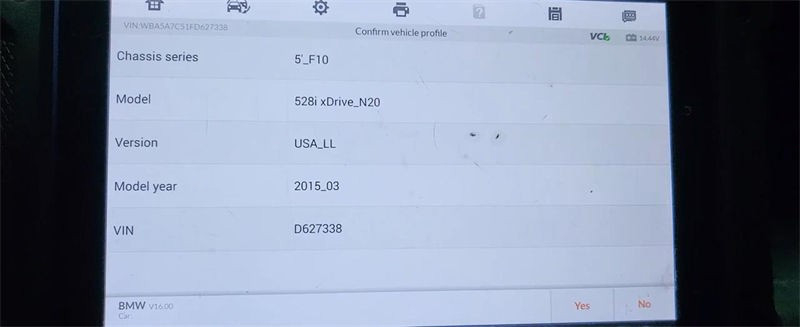
Diagnostics >> VIN >> Auto detect >> Accept >> OK >> Yes

2015-BMW-528i-Battery-Register-Replacement-by-Autel-IM608-2
2015-BMW-528i-Battery-Register-Replacement-by-Autel-IM608-3

Turn the ignition off.
Please wait…
Turn ignition on.

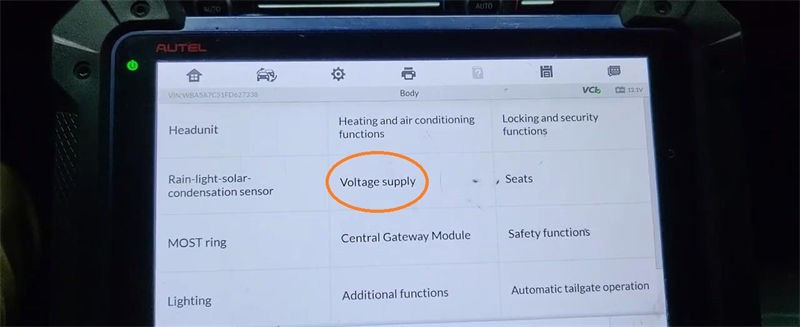
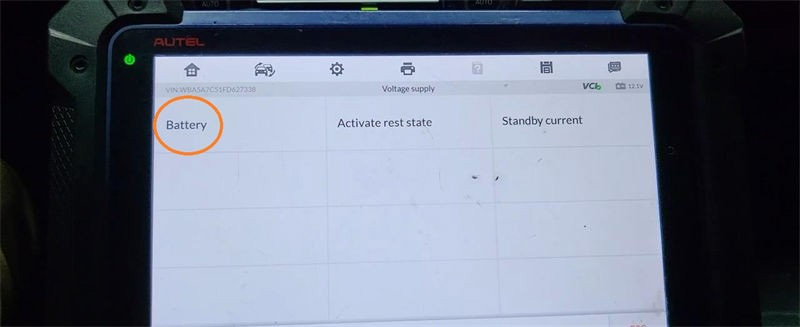
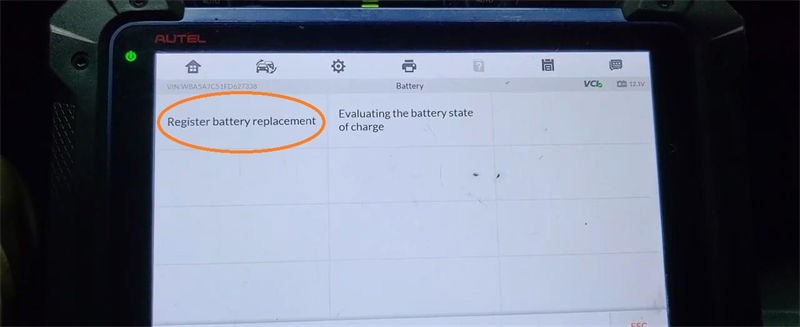
Service >> Body >> Voltage supply >> Battery >> Register battery replacement >> Register battery exchange
2015-BMW-528i-Battery-Register-Replacement-by-Autel-IM608-4
2015-BMW-528i-Battery-Register-Replacement-by-Autel-IM608-5
2015-BMW-528i-Battery-Register-Replacement-by-Autel-IM608-6

It’s processing… Wait for 100%.
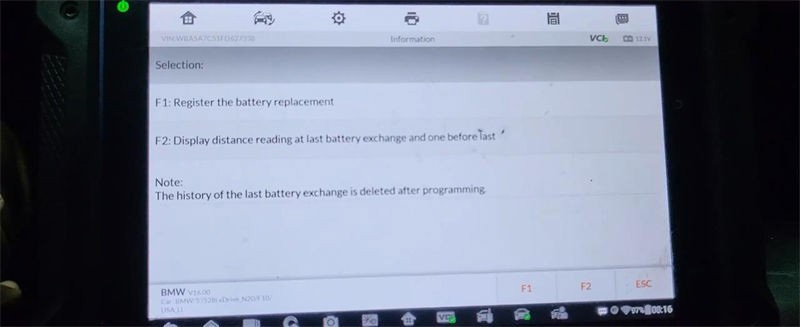
Press “F1” to register the battery replacement.
Note: the history of the last battery exchange is deleted after programming.

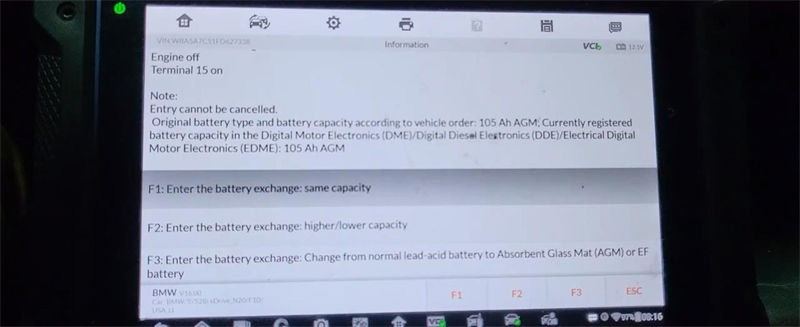
3 kinds of battery capacity, just select from your case.
F1: same capacity
F2: higher/lower capacity.
F3: change from normal lead-acid battery to absorbent Glass Mat(AGM) or EF battery.

Is the newly installed battery an original component? No.
Battery replacement is entered.
Please wait…
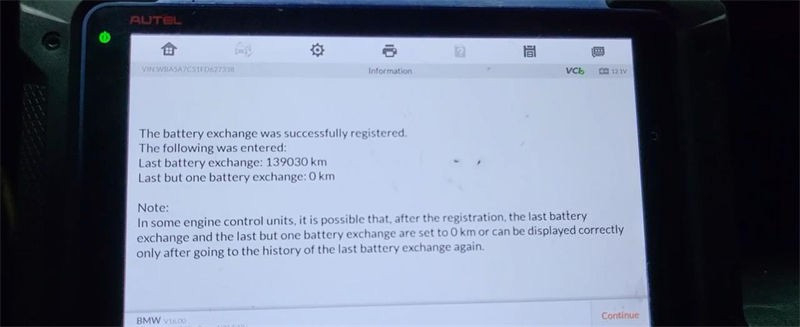
The battery exchange was successfully registered.
The following was entered:
Last battery exchange: 139030km
Last but one battery exchange: 0km

Note:
In some engine control unit, it is possible that:
After registration, the last battery exchange and the last but one battery exchange are set to 0 km or can be displayed correctly only after going to the history of the last battery exchange again.
2015-BMW-528i-Battery-Register-Replacement-by-Autel-IM608-7
2015-BMW-528i-Battery-Register-Replacement-by-Autel-IM608-8
2015-BMW-528i-Battery-Register-Replacement-by-Autel-IM608-9

Follow the prompts, continuous press “Continue”.

Note:
Full functionality is only available with a valid state of charge. Functions such as the Automatic Start/Stop function or intelligent generator control can be restricted up to a fully valid charge state or can be unavailable.
The date and time of the vehicle will be set.
If they are not correct, please set date and time manually.
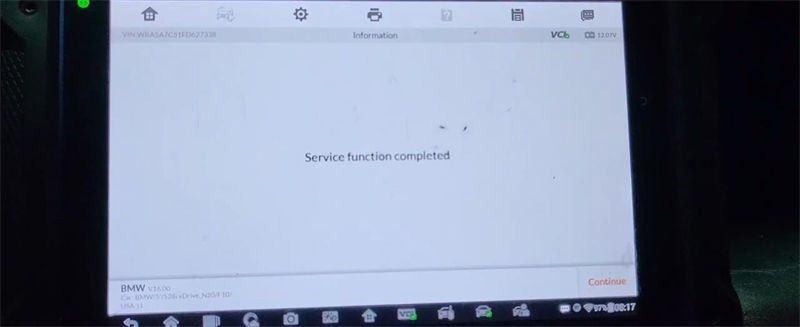
Service function completed.
Done!
2015-BMW-528i-Battery-Register-Replacement-by-Autel-IM608-10
This is how to use Autel IM608 Scanner to do register battery replacement for a BMW.

website sale@cnautotool.com

2021年12月11日星期六

How to use Autel MaxiIM IM608 to Complete Key Programming?

Autel MaxiIM IM608-5
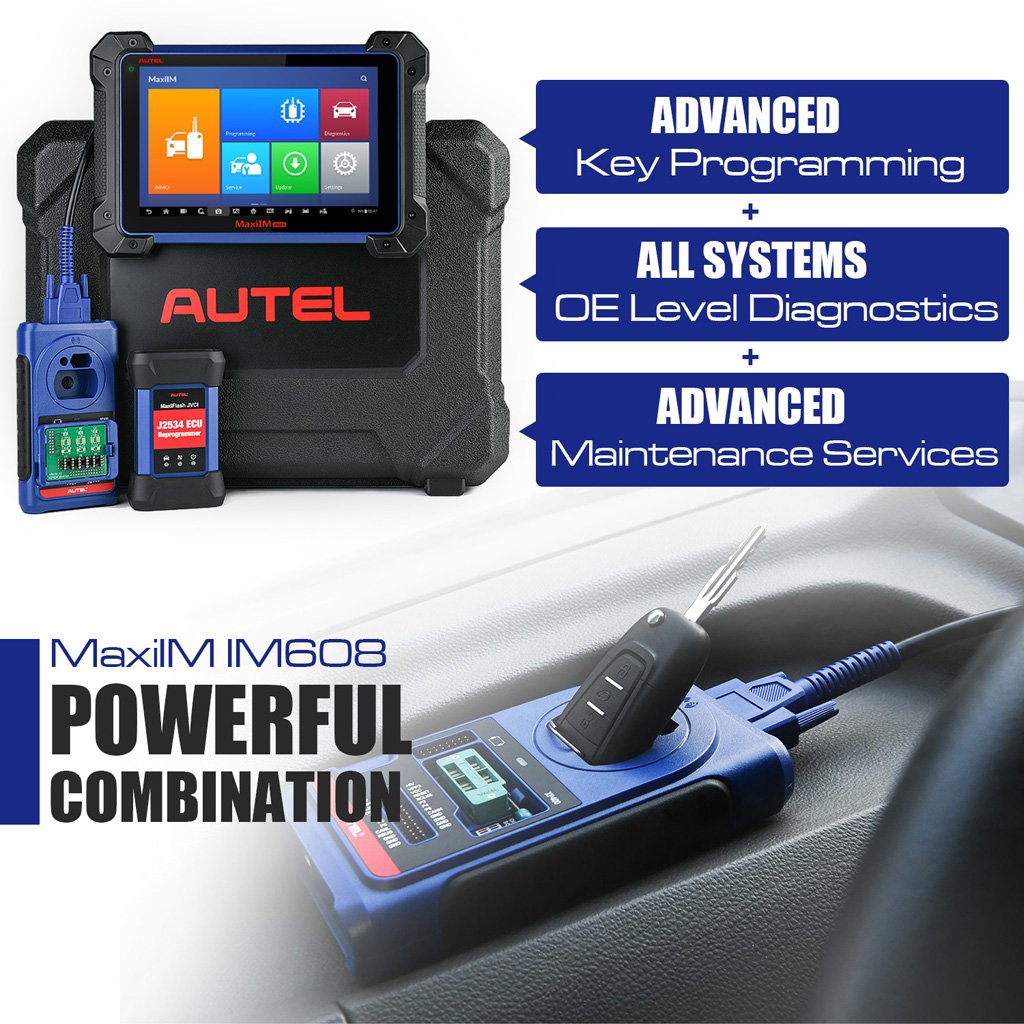
As Autel MaxiIM IM608 combines advanced key programming, all systems diagnostics, and advanced services in one Android based 10.1-inch touchscreen tablet, it is no doubt the current most advanced and unique all in one key programming and diagnostic tool in the world car tool market. Moreover, IM608 provides you with all special functions to quickly diagnose all modules for the majority of the makes and models on the market. It is the unprecedented key programming and diagnostic tool that you ever wanted.

Read on to get the core part of this tech article which will tell the customers how to use Autel MaxiIM IM608 to Complete Key Programming for their vehicles.

Know some basic knowledge before operation:

The Programming application requires connection between the tablet and the XP400, and no vehicle connection is required. This application can access the key chip, read, retrieve and write key information, as well as other key related functions.

Step-by-step guide:

Select the vehicle manufacturer in the vehicle menu, and then follow the onscreen instructions to select the instrument information to display the function menu.

autel-maxiim-608-complete-key-programming-1 (2)
Three main parts of key programming:

1. Chip Read & Write Operation:

⚫Select Chip Read & Write from the menu.

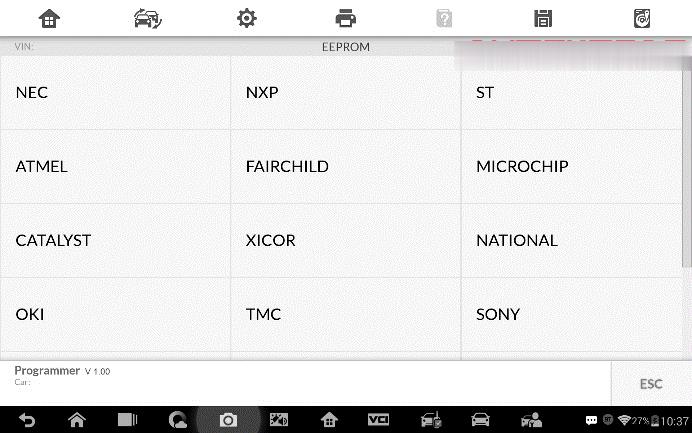
⚫Select the chip type if needed. In this example, select EEPROM.

autel-maxiim-608-complete-key-programming-2 (2)

⚫The screen displays the types of EEPROM supported. Select the right type.

autel-maxiim-608-complete-key-programming-3 (2)
⚫Select Read Operation on the next menu.

autel-maxiim-608-complete-key-programming-4 (2)

⚫The chip data screen displays. Select Save to save the data, or select Cancel to exit.

autel-maxiim-608-complete-key-programming-5 (2)

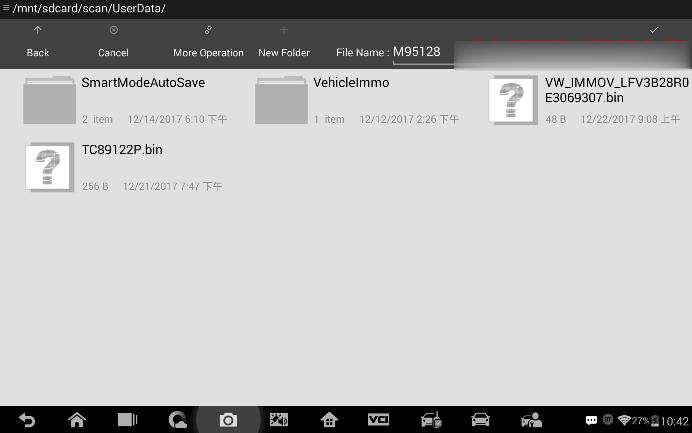
⚫Type the file name and select Confirm, the chip data will be saved on the tablet. And a “File saved successfully.” message displays.

autel-maxiim-608-complete-key-programming-6 (2)

⚫Select Write Operation from the operations menu. The tablet will open the default folder, select the saved data and click Confirm to write it into a black chip. And a “Chip written successfully.” message displays.

autel-maxiim-608-complete-key-programming-7 (2)

2. Key Read & Write

⚫Select Key Read & Write from the menu.

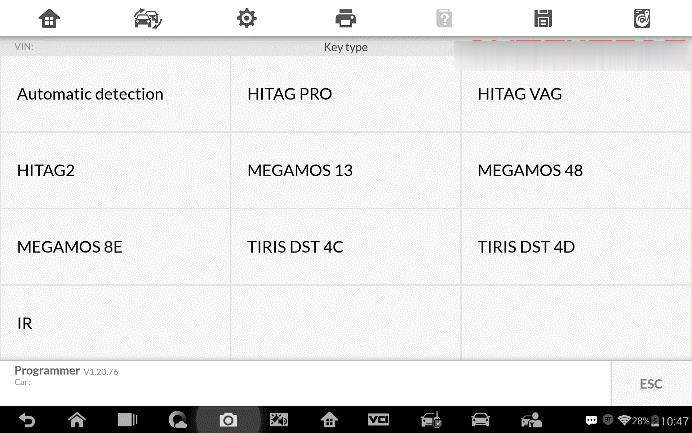
⚫Select the key type or automatic detection. Please note that automatic detection does not support detection of IR key

autel-maxiim-608-complete-key-programming-8 (2)

⚫Once the key type is successfully detected, the screen displays the key type, tap OK to enter the operation interface.

autel-maxiim-608-complete-key-programming-9 (2)

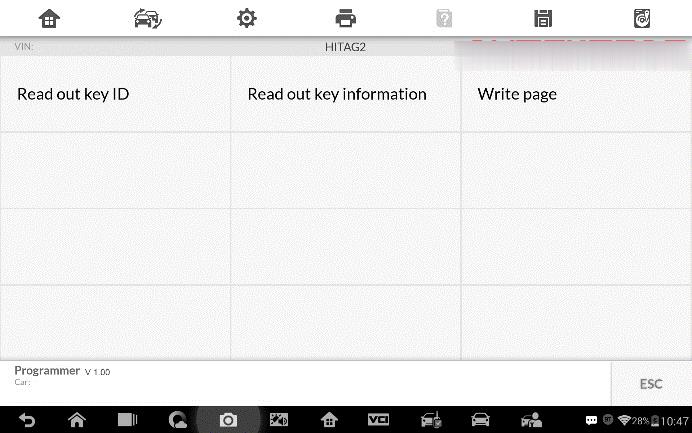
⚫The screen displays the supported functions which usually include Read out key ID, Read out key information, Write page.

autel-maxiim-608-complete-key-programming-10 (2)

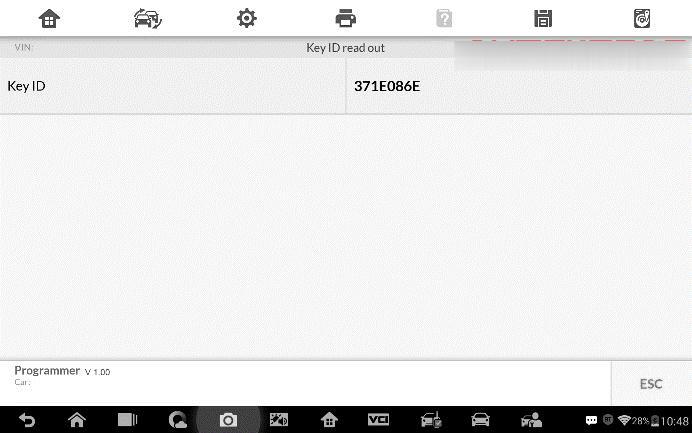
⚫Tap Read out key ID to read the key ID.

autel-maxiim-608-complete-key-programming-11 (2)

⚫Tap Read out key information to read the information.

autel-maxiim-608-complete-key-programming-12 (2)

⚫Tap Write page data to write the data.
autel-maxiim-608-complete-key-programming-13 (2)

3. Remote Detection

⚫Tap Remote Detection from the menu, the function menu displays.

autel-maxiim-608-complete-key-programming-14 (2)

⚫Put the key into suitable area and press down any key button. The screen displays the frequency of the key.

⚫Tap Read out remote information to check the information.

autel-maxiim-608-complete-key-programming-15 (2)

More product information about Autel Diagnostic Scanner, please check:https://www.cnautotool.com/category-37-b0-Autel+Tools.html