显示标签为“Cummins INLINE 7”的博文。显示所有博文

2022年10月8日星期六

How to use Cummins INSITE Software to connect to CUMMINS engine

How to use Cummins INSITE Software to connect to CUMMINS engine-1
There Share details of connecting Cummins engines with Cummins INSITE software
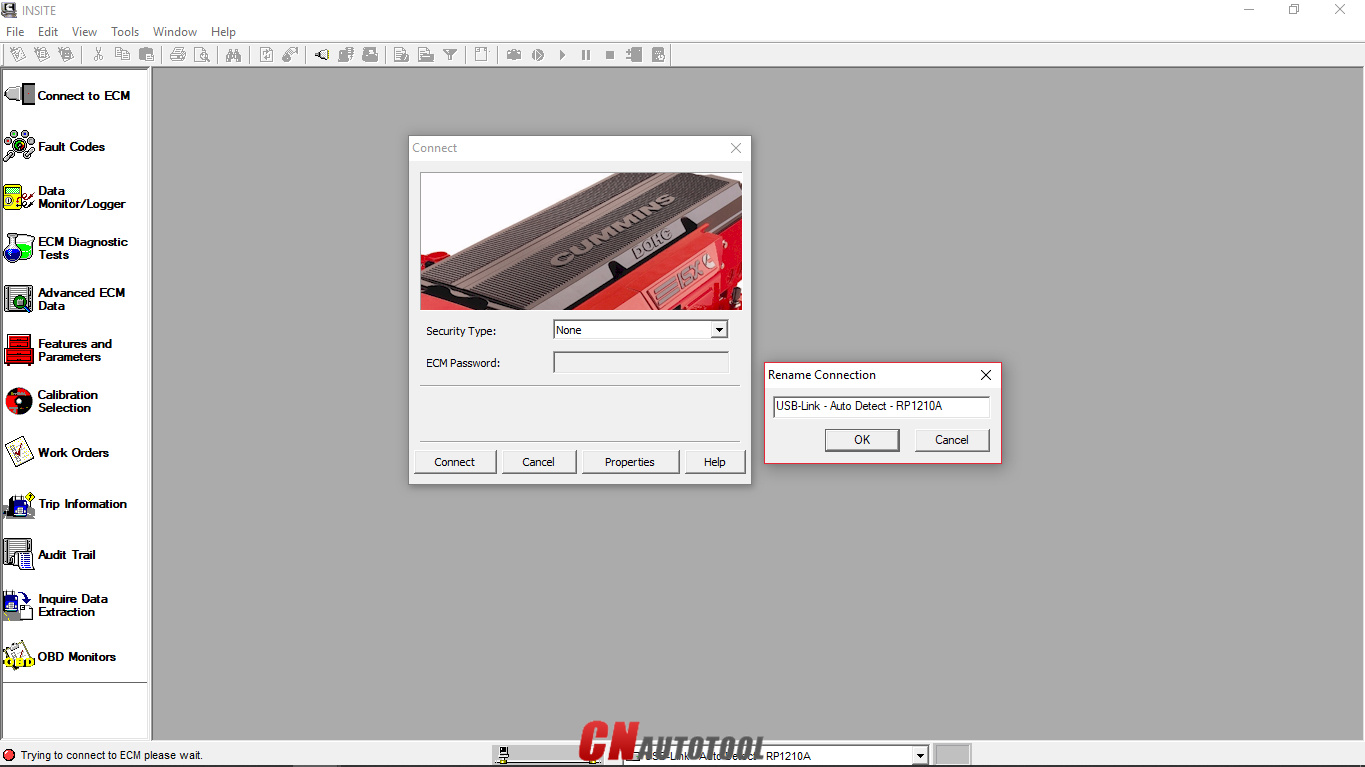
Proceed as follows:
Open “Cummins INSITE” via the shortcut on the desktop. Use the status bar to select connection options

How to use Cummins INSITE Software to connect to CUMMINS engine-2
Figure 1.2 – Status bar (Connection Options)
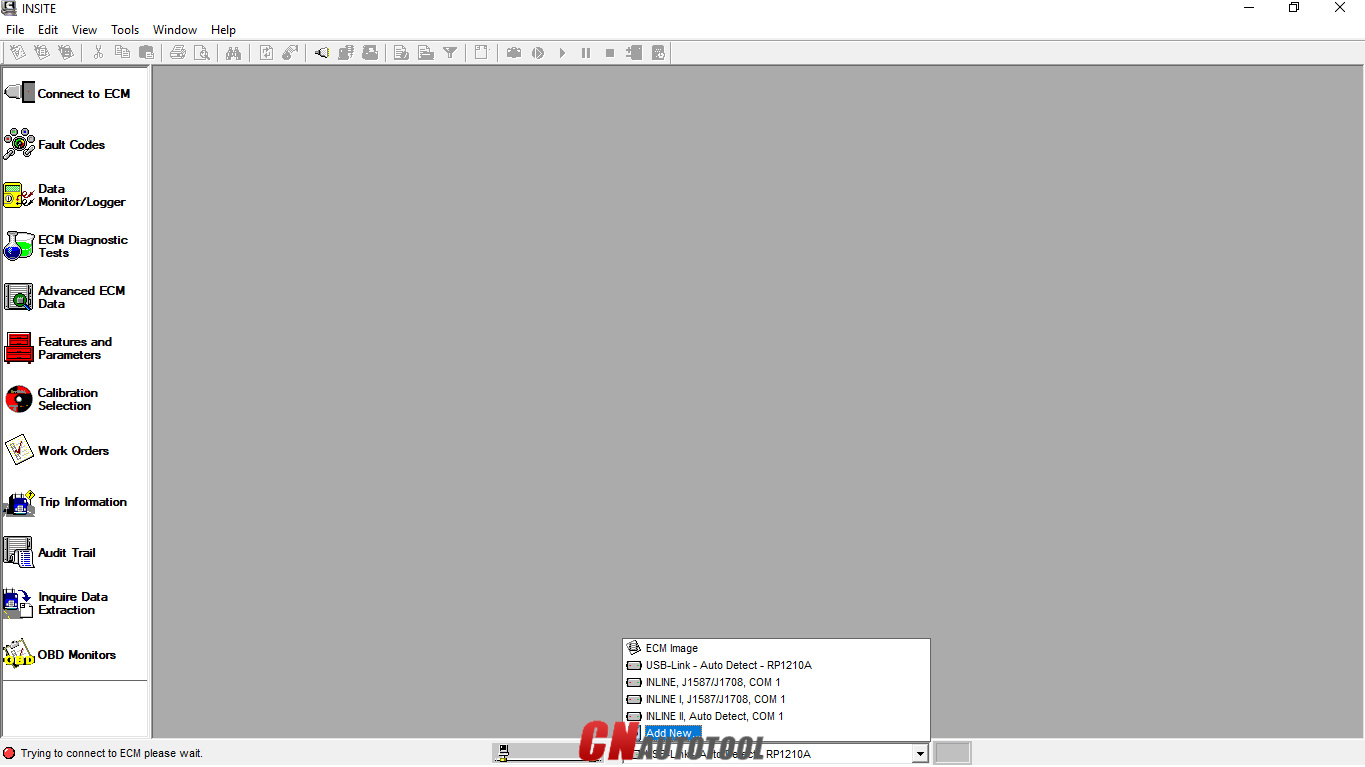
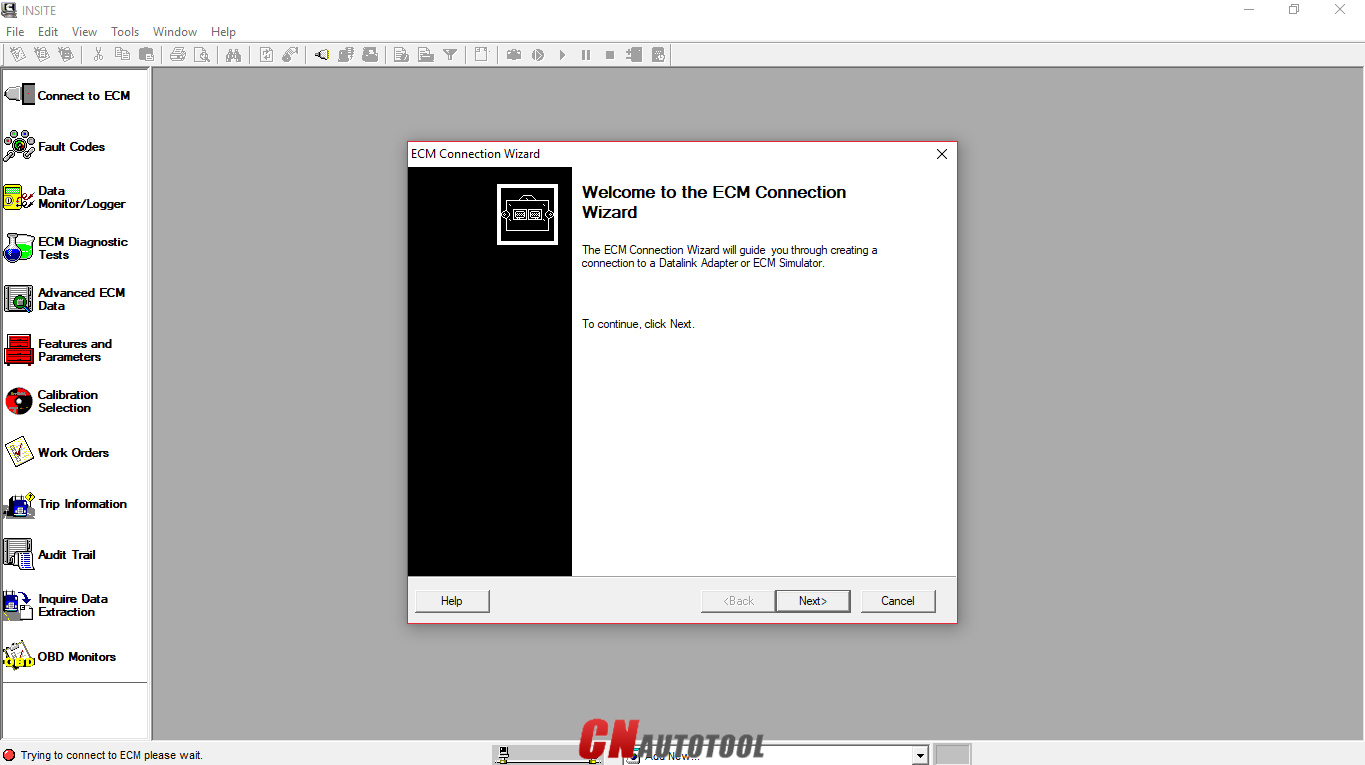
Click the dropdown box on the “Status bar” to view a list of all currently available connection options, or click “Add New” to create one, then click “Next”.
How to use Cummins INSITE Software to connect to CUMMINS engine-3

Figure 1.3 – ECM Connection Wizard

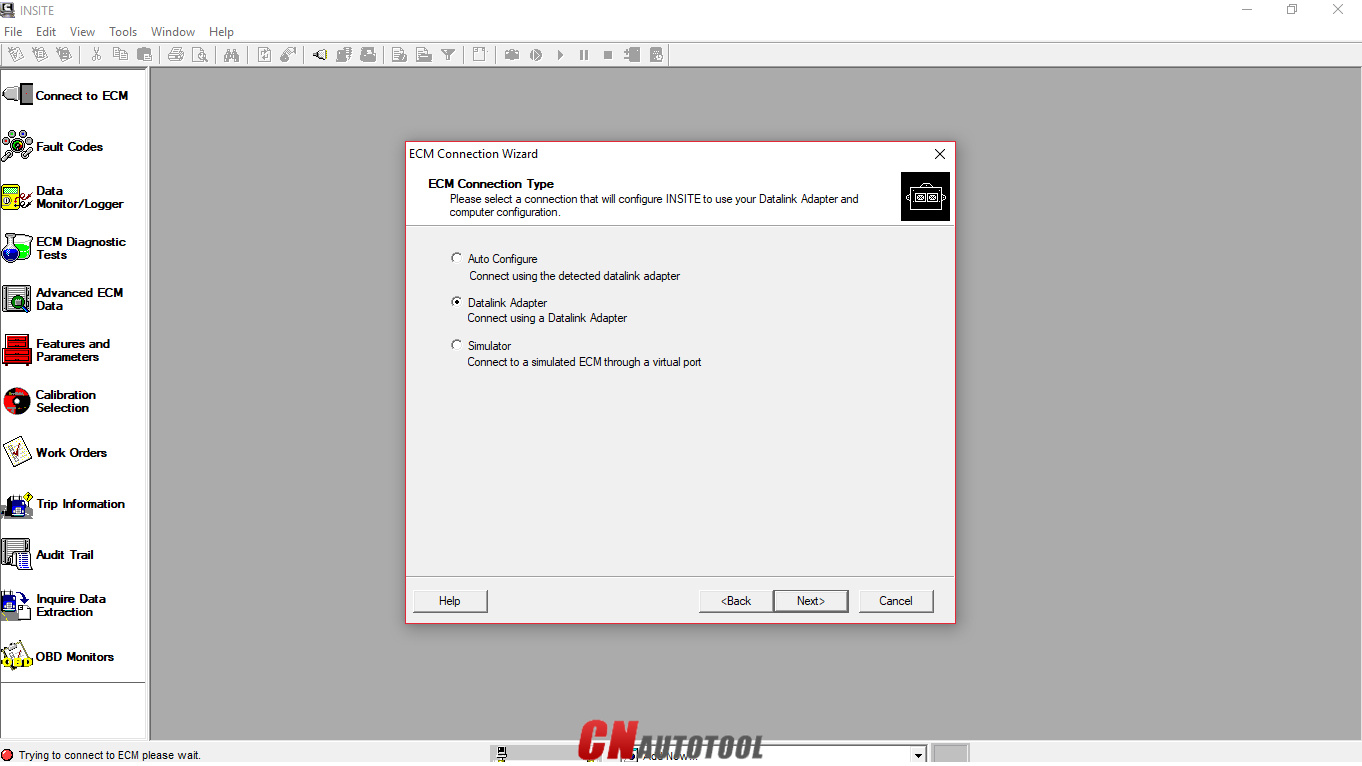
Use the “ECM Connection Type” page, and choose “Datalink Adapter” (Connect using a Datalink Adapter), then click “Next”.
How to use Cummins INSITE Software to connect to CUMMINS engine-4
Figure 1.4 – ECM Connection Type
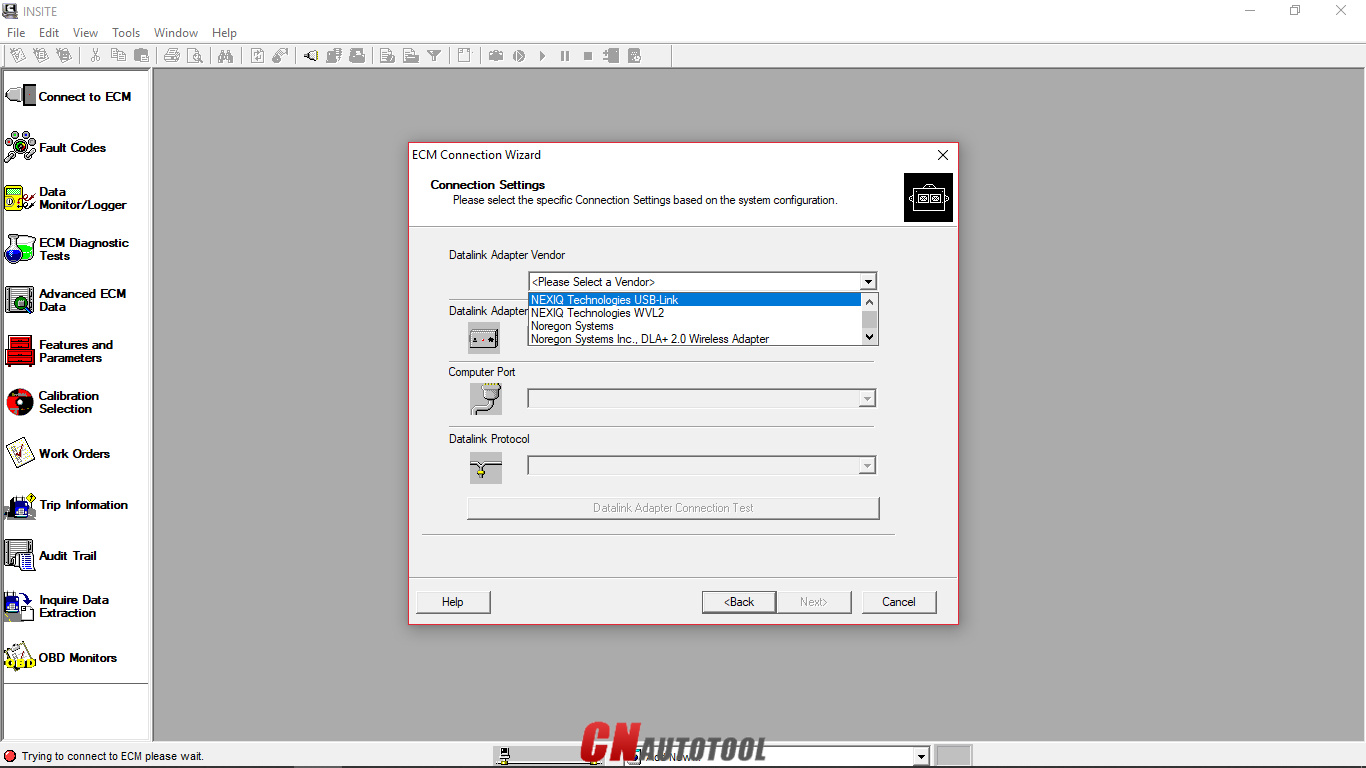
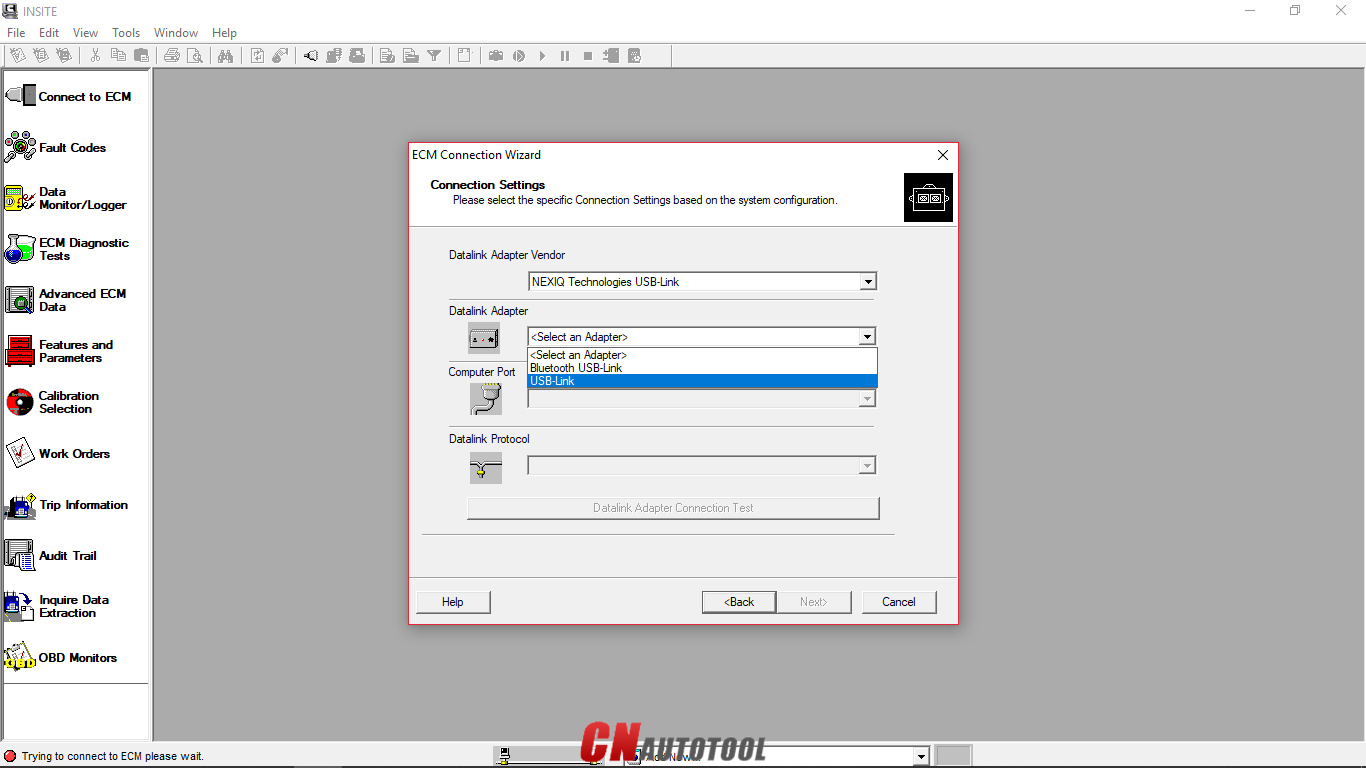
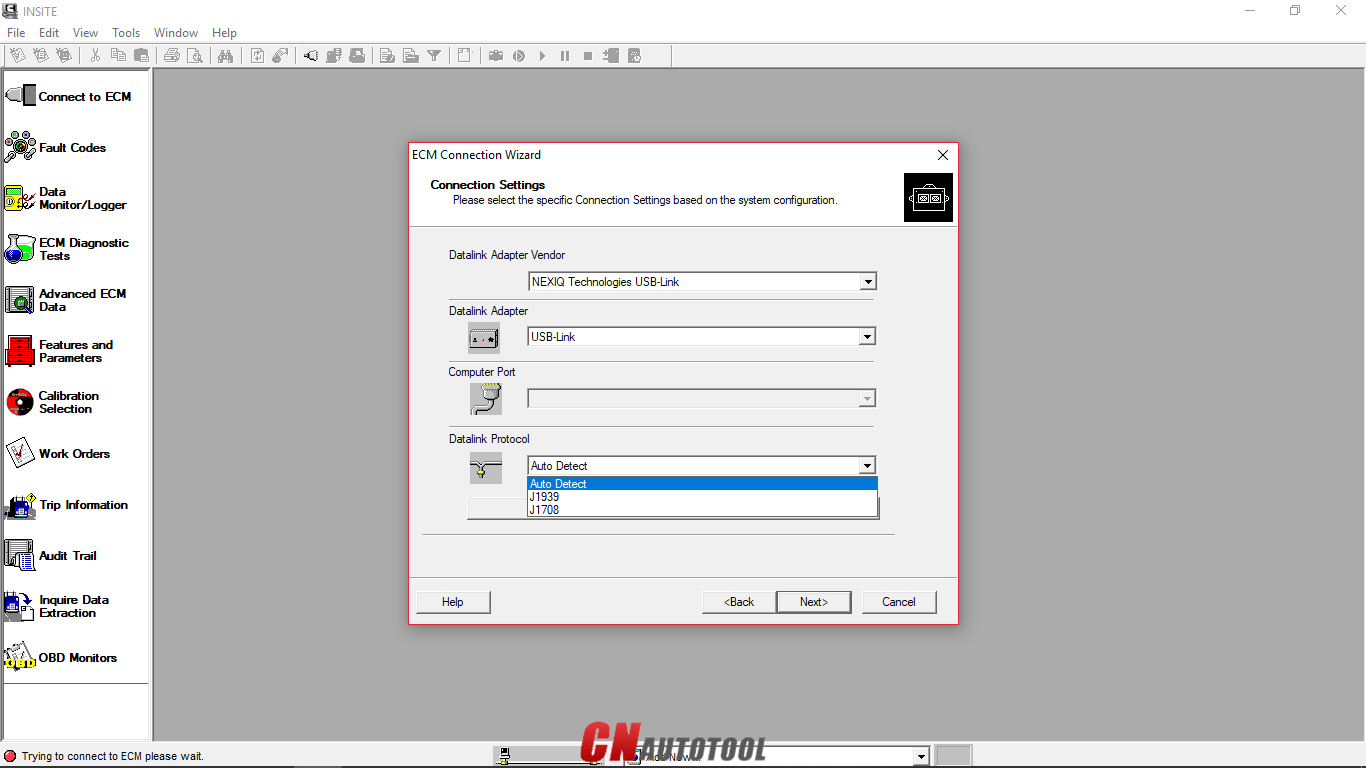
Choose “Connection Settings”, select your “Datalink Adapter Vendor”, “Datalink Adapter”, and “Datalink Protocol”, then click “Next”.
How to use Cummins INSITE Software to connect to CUMMINS engine-5

Figure 1.5 – Datalink Adapter Vendor

How to use Cummins INSITE Software to connect to CUMMINS engine-6
Figure 1.6 – Datalink Adapter
How to use Cummins INSITE Software to connect to CUMMINS engine-7

Figure 1.7 – Datalink Protocol

Click “Connect to ECM”
-If you are connecting to a new ECM or an ECM without existing ECM passwords, select “None” in the Security Type: dropdown list.
-If you then want to define ECM security type passwords, select ECM Passwords on the Tools menu once connected to the ECM.

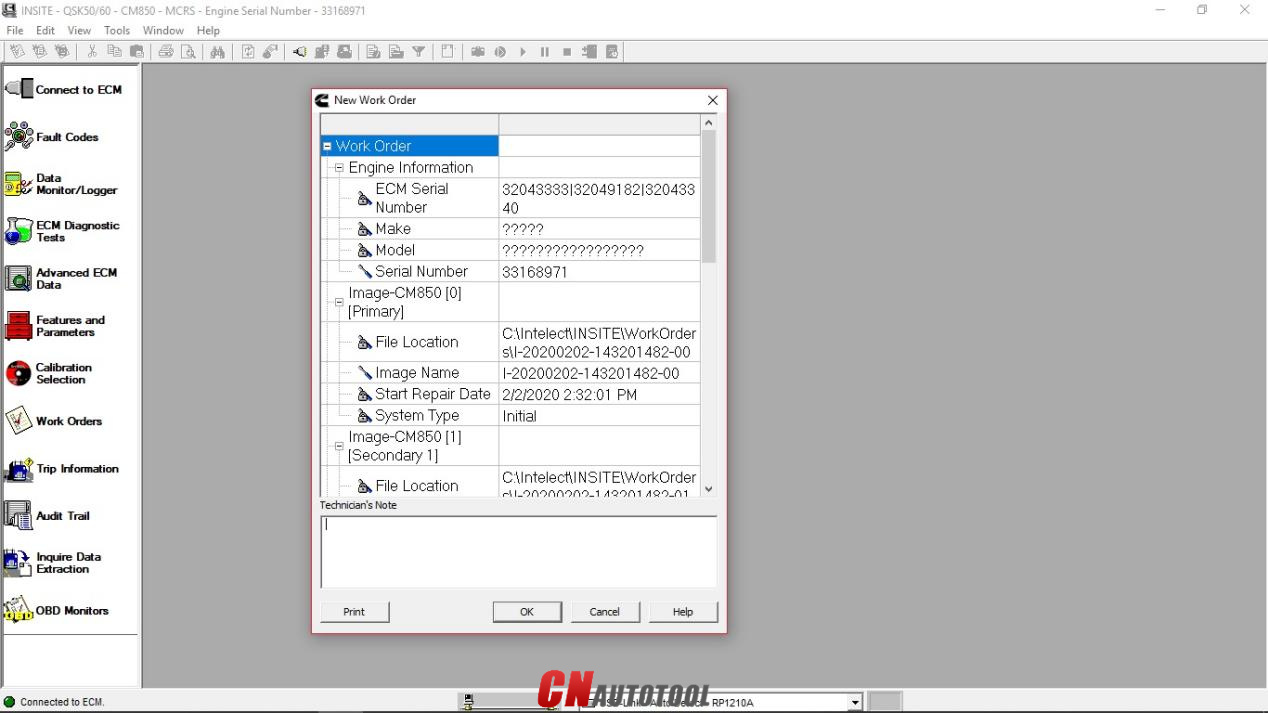
The “Work Order Wizard” is automatically displayed for you to create a work order for the selected connection, then click “OK”. NOTE: You can disable the Wizard from starting automatically by unchecking the Enable Work Order Mode checkbox in the Work Orders page of the Options window.

How to use Cummins INSITE Software to connect to CUMMINS engine-8
Figure 1.8 – New Work Order

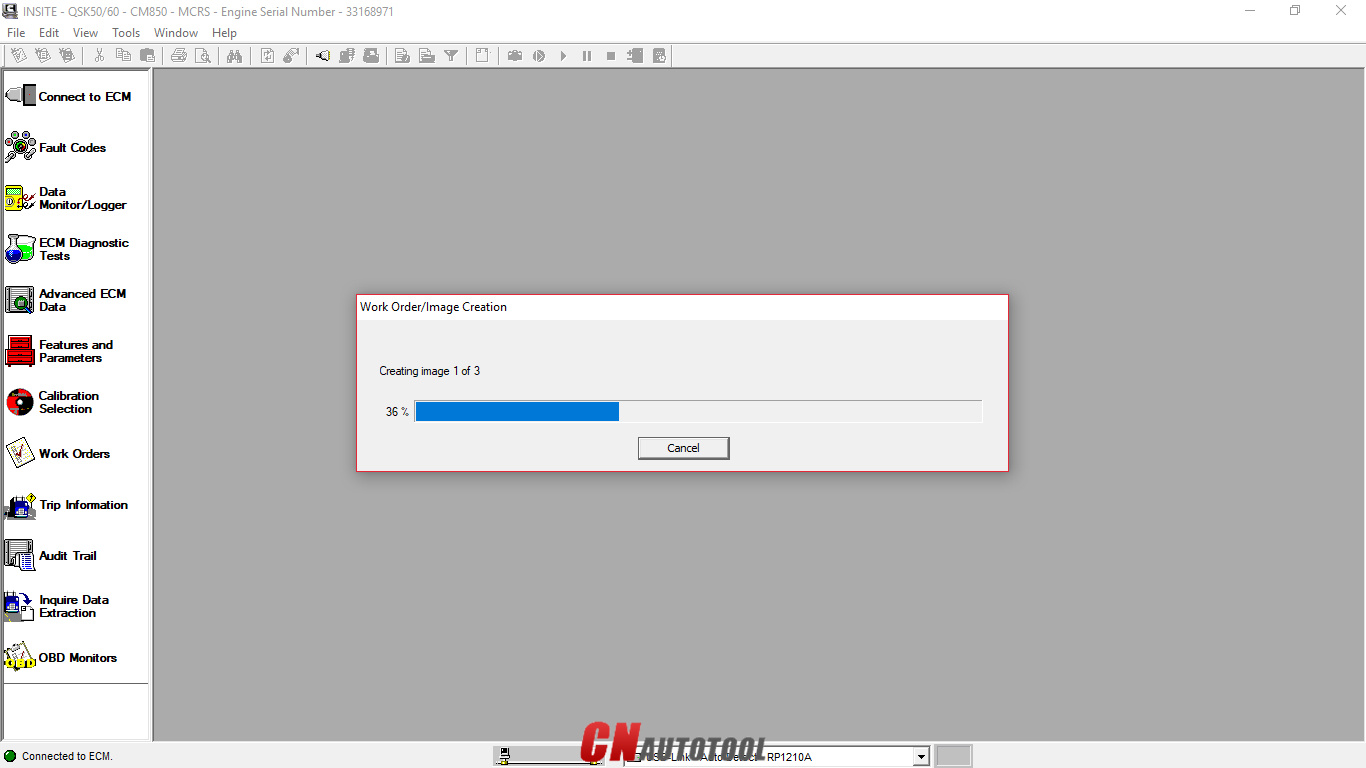
Wait the “Work Order/Image Creation” until 100% of creating image.

How to use Cummins INSITE Software to connect to CUMMINS engine-9
Figure 1.9 – Work Order/Image Creation
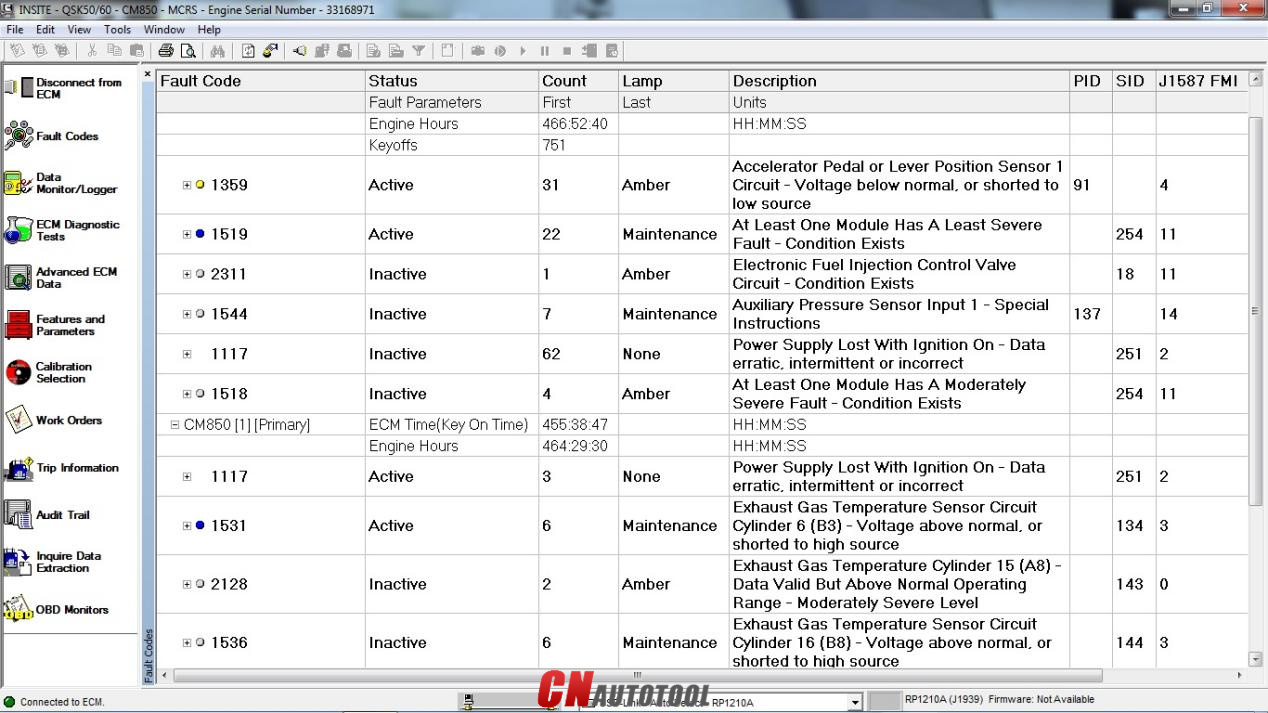
For example, “Fault Codes” display on Cummins INSITE software.
How to use Cummins INSITE Software to connect to CUMMINS engine-10

Figure 2.1 – Fault Codes

How to use Cummins INSITE Software to connect to CUMMINS engine-11
Figure 2.2 – Fault Codes (Overview)


Looking forward to your consultation our website sale@cnautotool.com

2021年11月25日星期四

How to step by step install Cummins Insite 7?


Cummins INLINE 7 Data Link Adapter-1

New Cummins engine diagnostic tool Cummins INLINE 7 Data Link Adapter has a faster processor, more robust algorithms, larger memory buffers and more sophisticated filtering than previous models while simultaneously accessing multiple vehicle data channels.
1.Hardware: Cummins INLINE 7 Data Link Adapter
2.Software: Cummins Insite 8.5
3.Update Method: update by CDs


INSITE Software System Compatibility:
Windows 7 32-bit and 64-bit
Windows 8 32-bit and 64-bit
Windows 8.1 32-bit and 64-bit
Windows 10 32-bit and 64-bit
4.Multi-language: English(united states)/ Chinese(simplified)/ Danish/ Dutch/ Finnish/ French/ German/ Italian/ Japanese/ Korean/ Norwegian/ Portuguese/ Russian/ Spanish/ Swedish/ Turkish
5.Suggest Operating System: Win7 32 Bit System
6.Connection Method: WIFI/ Bluetooth/ USB

How to step by step install Cummins Insite 7-1

How to step by step install Cummins Insite 7:
1) Open the folder < Cummins InSite7 install>-
2) open the autorun.exe
3) Here is Insite installation menu
4) go to manually install packages
5) install 7
6) go to upgrade insite on the dvd menu
7) let update manager find the updates off the dvdwhich will update it just below sp5
8) change dropdown un update manager to find updates off internet and let it completely updateI think 7.6.1 has been removed off their site and 7  needs it
9) disable your antivirus program
10) Open the folder Cummins insite 7.x keygen (Cummins 7.x kg)
11) insert your PC-ID and get key for activation12). .insert the activation key to run the software
How unlock the expired program Cummins inside:
Now you need to start to change the date on the computer,set the date 1 january 2014 on your computer/notebook.

Then run the program INSITE. You will see a message about changing the date. Click OK.Now you can see the PC-ID and Verificaton Codefor ex. see the picture:

How to step by step install Cummins Insite 7-2

Open the Cummins Date Unlock and set the same date 1 january 2014 and your PC-ID andVerification Code.
Clik the Make Passwords!
Now you have the unlock password code.Enjoy!

How to step by step install Cummins Insite 7-3

Cummins Insite review of operation systems:
I have had it work on win10 home too but it quit working. I reformatted my drive tried to installinsight. and it says something is interrupting install. I am trying it on win10 pro.
I installed 7 and it worked fine, I then copied my entire Intelect folder from another computer that isrunning XP withinsite 7 to a flash drive and from the flash drive I moved the intelect folder to thecomputer that I am using windows 8.1 on. It worked fine for me after unlocking and applying the SP5patch. I did the same to a computer using windows 10 with no issues.
I install version 7 of insite in Windows 10 without any problem, the following maner before givingdouble click the setup, then you give right- click and select properties select compatibility compatibilitymode to win xp sevice pack 2 and ready the program began to install only have patience.
I’m running Ubuntu 15. 10 with VirtualBox, and Win XP VM. INSITE works perfectly, and not oneproblem with the install. I have done it multiple times. Try running a VM with an older version ofWindows. Just my two cents.
I have install all Insite, Jpro, DDDL, on win 8.1 then updated to win 10 all work fine on issue.
i got mine to work but had to set it as admin and run as windows 7.


If you have any problem, please do not hesitate to contact us with sale@cnautotool.com.

2021年8月28日星期六

The Cummins Inline 7 Datalink Adapter


The Cummins Inline 7 datalink adapter is a reliable adapter that can be used with many applications to communicate with various vehicle systems.  It is designed to be used with RP1210 compliant software with the following connectors:

6 pin (J1708 / J15870)
9 pin (J1939)
OBD2

Supports all Cummins electronic engines.  Can also be used with all other RP1210 software such as:

Caterpillar (on-road)
Detroit
Allison
Navistar
WABCO
Bendix
Eaton
Freightliner
etc.

Cummins INLINE 7-1 Cummins INLINE 7-2 3-3

The INLINE 7 datalink adapter communicates with your PC using a:

USB cable through a standard USB connector
WiFi
Bluetooth

Cummins was among the first to release an adapter with all three connection options. INLINE 7 is fully compliant with the TMC RP1210 standard, and also offers 250 and 500 K baud support, including up to 1 megabaud support.

Functions with a wide array of Cummins, OEM and third-party service and information tools
Fully compliant with the Technology and Maintenance Council’s RP1210 standard

Protocols supported:

J1708/J1587
J1939 (250K, 500K, or 1 MB)
CAN (125K, 250K, 500K, 1 MB)
(3 CAN channels with Auto Baud)
ISO 9141
ISO 14230 (KWP2000)
ISO 15765

Package Includes:

Inline 6 Data Module
Data Module Protective Boot
USB Cable
9 Pin Data Cable
Inline 6 Driver CD
J1939 (3 pin male) Backbone Adapter
J1939 (3 Pin female) Gender Change Adapter
DB25F 2 Pin & 3 Pin Cable
Storage Case

CnAutotool.com | More Cummins Diagnostic Software

Cummins was among the first to release an adapter with all three connection options. INLINE 7 is fully compliant with the TMC RP1210 standard, and also offers 250 and 500 K baud support, including up to 1 megabaud support. Cummins was among the first to release an adapter with all three connection options. INLINE 7 is fully compliant with the TMC RP1210 standard, and also this is also the case for the newer diagnostic systems that are in use today.

2021年7月14日星期三

What is the difference between Cummins INLINE 6 and Cummins INLINE 7?

 New Cummins engine diagnostic tool Cummins INLINE 7 Data Link Adapter has a faster processor, more robust algorithms, larger memory buffers and more sophisticated filtering than previous models while simultaneously accessing multiple vehicle data channels. INLINE 7 supports USB, WiFi and Bluetooth technologies in a single device. INLINE 7 communicates with your PC and is designed for future capability with mobile products.

1.Hardware: Cummins INLINE 7 Data Link Adapter
2.Software: Cummins Insite 8.5
3.Update Method: update by CDs
4.Multi-language: English(united states)/ Chinese(simplified)/ Danish/ Dutch/ Finnish/ French/ German/ Italian/ Japanese/ Korean/ Norwegian/ Portuguese/ Russian/ Spanish/ Swedish/ Turkish
5.Suggest Operating System: Win7 32 Bit System
6.Connection Method: WIFI/ Bluetooth/ USB 


What is the difference between Cummins INLINE 6 and Cummins INLINE 7?


The Cummins INLINE 7 DataLink Adapter is designed to function with a wide array of Cummins, OEM and third-party service and information tools, including the following:
Cummins INSITE
Cummins PowerSpec
Detroit Diesel Diagnostic Link
CAT Electronic Technician (On-Highway only)
Navistar® -ServiceMaxx Fleet Pro
Volvo PTT
VCAD Elite Mack/Volvo
V-Mac Service Tools
Allison DOC® For PC Service Tool
Allison DOC® for Fleets (1000/2000/3000/4000)
Eaton ServiceRanger
Bendix ACom
WABCO Toolbox
Freightliner ServiceLink
International DLB, Intune, and IPC v2.02
International ServiceMaxx
PF-Diagnosis
and many more!
 

2021年1月13日星期三

How to perform ECM calibration download by Cummins Insite?


This instruction show you the procedures on how to perform Cummins ECM calibration download by Cummins Inline 6 or Cummins Inline 7.

Procedures:

Connect to ECM

Open Calibration Selection and select ECM\PDD button

If Auto-Detect is enabled, INSITE will automatically detect the calibration code currently in the ECM.

If Auto-Detect is not enabled, locate desired calibration in Calibration Workspace or other location (such as INCAL DVD or network drive)Requires downloading calibration from ECM Code Search in INSITE or through Quickserve

Select calibration

Right-click on calibration and select “Transfer to ECM”
18-1

Click the Next button on the Calibration Download Wizard window

Review the System ID and Dataplate informationDataplate information can be edited in this window

The Restore Original Values button will undo all edits made

The Save/Restore Adjustable Parameters box is checked by default. (Recommended)

Click the Next button
18-2
Verify the information in the Summary window

Click the Next button to continue

Review the Adjustment Confirmation windowAnytime, up to this point, you can cancel the download and go back

Click on the OK button to continue

18-3

Performing a Multi-Module Calibration Download

When connected to a primary and one or more secondary ECM(s), you will be prompted to select one of the following options:Calibrate Engine Control System (Single Key-Off)

Calibrate Engine Control System (Multiple Key-Off)

Calibrate Single ECM
18-4
When using either the Calibrate Engine Control System (Single Key-Off) or the Calibrate Engine Control System (Multiple Key-Off) options, INSITE will display compatible secondary calibrations to select during the Select Calibration process.
18-5
Calibration Transfer progress windows
18-6
Turn off the key switch and click on the OK button to continue
18-7
Calibration Transfer Key Switch progress message

Turn on the key switch and click on the OK button to continue
18-8
Calibration Transfer Results window

Click the OK button to continue

Calibration Transfer Complete window

Click on the Next button to continue
18-9
Click on the Finish button to close the ECM Calibration Download Wizard
18-10

Performing A PDD Calibration Download

Connect to ECM

Open Calibration Selection and select ECM\PDD button

Right click on Programmable Datalink Device (PDD) and select Autodetect Calibration

Or locate desired calibration In Calibration WorkspaceRequires downloading calibration from ECM Code Search in INSITE or through Quickserve

INCAL DVD

Network Drive
18-11
Autodetect will find and select the appropriate calibration code for the connected PDD
18-12
Right click the desired calibration code and select “Transfer To Device” or select the “Transfer to ECM” button from the toolbar
18-13
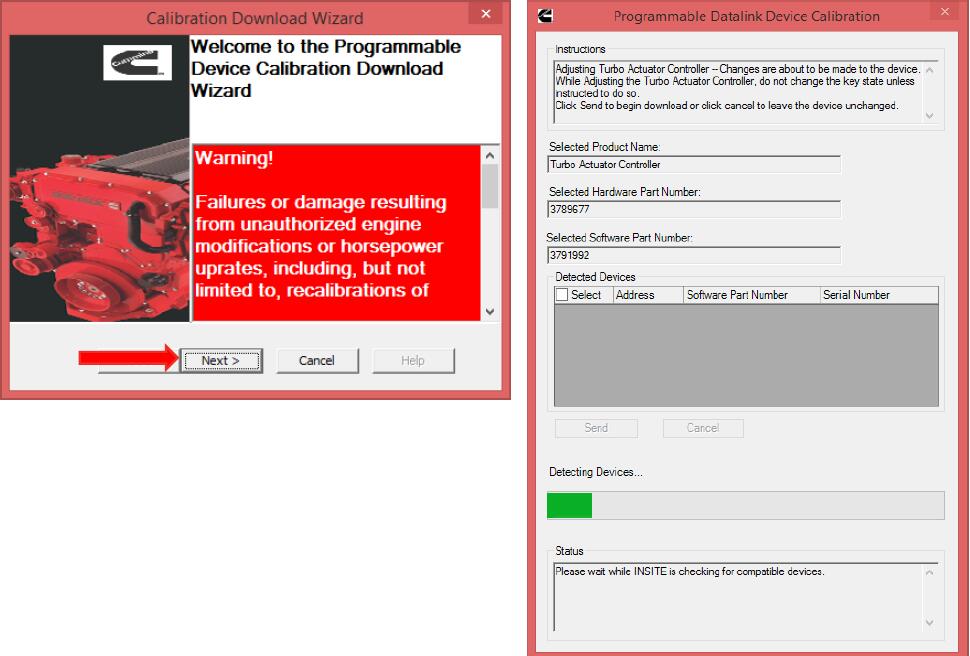
On the Calibration Download Wizard click on the Next button18-14

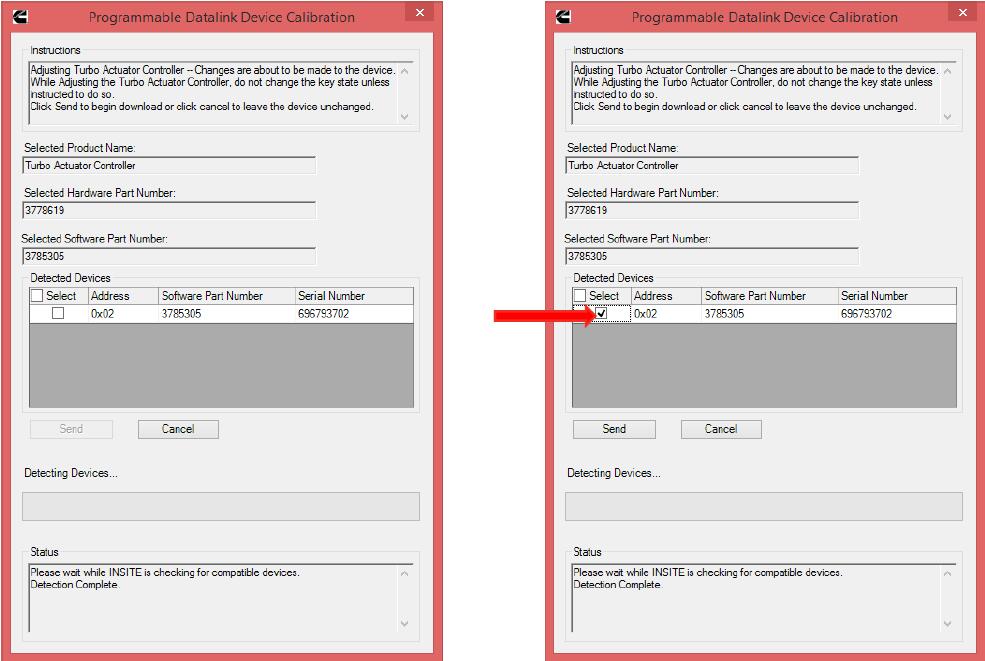
On the PDD Calibration window select the device to be calibrated by checking the box
18-15
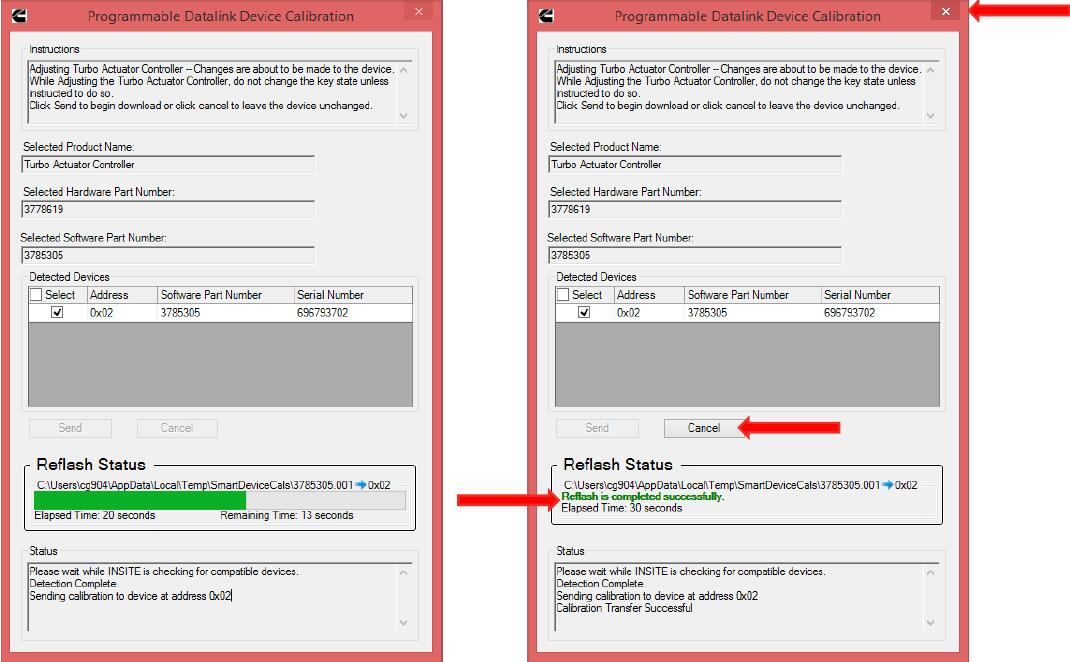
On the PDD Calibration window, when the “Reflash is completed successfully” message appears, click on the Cancel button or Red X button to close the window and continue

The ECM will reconnect automatically

18-16

 
www.cnautotool.com
 

http://obd2scantool.info/2021/01/13/how-to-perform-ecm-calibration-download-by-cummins-insite/

2021年1月8日星期五

The INLINE 7 Data Link Adapter Description


1.Hardware: Cummins INLINE 7 Data Link Adapter
2.Software: Cummins Insite 8.5
3.Update Method: update by CDs
4.Multi-language: English(united states)/ Chinese(simplified)/ Danish/ Dutch/ Finnish/ French/ German/ Italian/ Japanese/ Korean/ Norwegian/ Portuguese/ Russian/ Spanish/ Swedish/ Turkish
5.Suggest Operating System: Win7 32 Bit System
6.Connection Method: WIFI/ Bluetooth/ USB

Cummins INLINE 7-1

It’s like adding a turbocharger to Electronic Control Module downloads and uploads. Cummins new INLINE 7 Data Link Adapter has a faster processor, more robust algorithms, larger memory buffers and more sophisticated filtering than previous models while simultaneously accessing multiple vehicle data channels. INLINE 7 supports USB, WiFi and Bluetooth technologies in a single device. INLINE 7 communicates with your PC and is designed for future capability with mobile products.

The INLINE 7 Data Link Adapter is designed to function with a wide array of Cummins, OEM and third-party service and information tools, including the following:
Cummins INSITE
Cummins PowerSpec
Detroit Diesel Diagnostic Link
CAT Electronic Technician (On-Highway only)
Navistar® -ServiceMaxx Fleet Pro
Volvo PTT
VCAD Elite Mack/Volvo
V-Mac Service Tools
Allison DOC® For PC Service Tool
Allison DOC® for Fleets (1000/2000/3000/4000)
Eaton ServiceRanger
Bendix ACom
WABCO Toolbox
Freightliner ServiceLink
International DLB, Intune, and IPC v2.02

The INLINE 7 data link adapter communicates with your PC using a Universal Serial Bus (USB) through a standard USB connector as well as through WiFi or Bluetooth. INLINE 7 is fully compliant with the Technology and Maintenance Council’s RP1210 standard and supports three simultaneous CAN connections and offers baud rates of 250k, 500k and 1 megabaud. INLINE 7 supports several other protocols such as J1708, J1587, ISO 15765, ISO 9141 (K and L line).

Industrial-Strength Design.

Cummins INLINE 7 Data Link Adapter incorporates strain relief secure cables for a robust connection. The rugged carrying case provides extra protection for the most demanding service environments. The main unit comes with a full one-year warranty against software and hardware malfunction.

Every Detail. Covered.

Everything you need from locking USB cable, 6-Pin, and 9-Pin Deutsch Wye adapter with security chip, and rugged storage case is included in the complete INLINE 7 kit.

Cummins INLINE 7 Package List:
1pc x Cummins INLINE 7 Data Link Adapter
1pc x DB26Pln-OBDll Cable
1pc x USB Cable
1pc x DB26/2Pin/3Pin Cable
1pc x DB26/9Pin Data Link Cable
1pc x 3Pin Connector
1pc x Software Compact U disk

2021年1月3日星期日

Cummins Inline 6 vs Cummins Inline 7 in software and hardware


1.Hardware: Cummins INLINE 7 Data Link Adapter
2.Software: Cummins Insite 8.5
3.Update Method: update by CDs
4.Multi-language: English(united states)/ Chinese(simplified)/ Danish/ Dutch/ Finnish/ French/ German/ Italian/ Japanese/ Korean/ Norwegian/ Portuguese/ Russian/ Spanish/ Swedish/ Turkish
5.Suggest Operating System: Win7 32 Bit System
6.Connection Method: WIFI/ Bluetooth/ USB

Cummins INLINE 7-1

New Cummins engine diagnostic tool Cummins INLINE 7 Data Link Adapter has a faster processor, more robust algorithms, larger memory buffers and more sophisticated filtering than previous models while simultaneously accessing multiple vehicle data channels. INLINE 7 supports USB, WiFi and Bluetooth technologies in a single device. INLINE 7 communicates with your PC and is designed for future capability with mobile products.

The Cummins INLINE 7 DataLink Adapter is designed to function with a wide array of Cummins, OEM and third-party service and information tools, including the following:
Cummins INSITE
Cummins PowerSpec
Detroit Diesel Diagnostic Link
CAT Electronic Technician (On-Highway only)
Navistar® -ServiceMaxx Fleet Pro
Volvo PTT
VCAD Elite Mack/Volvo
V-Mac Service Tools
Allison DOC® For PC Service Tool
Allison DOC® for Fleets (1000/2000/3000/4000)
Eaton ServiceRanger
Bendix ACom
WABCO Toolbox
Freightliner ServiceLink
International DLB, Intune, and IPC v2.02
International ServiceMaxx
PF-Diagnosis
and many more!

The Cummins INLINE 7 data link adapter communicates with your PC using a Universal Serial Bus (USB) through a standard USB connector as well as through WiFi or Bluetooth. INLINE 7 is fully compliant with the Technology and Maintenance Council’s RP1210 standard and supports three simultaneous CAN connections and offers baud rates of 250k, 500k and 1 megabaud.

Cummins INLINE 7 Supports several other protocols:
such as J1708, J1587, ISO 15765, ISO 9141 (K and L line)

Cummins Inline 7 Data Link Adatper VS. Cummins Inline 6:

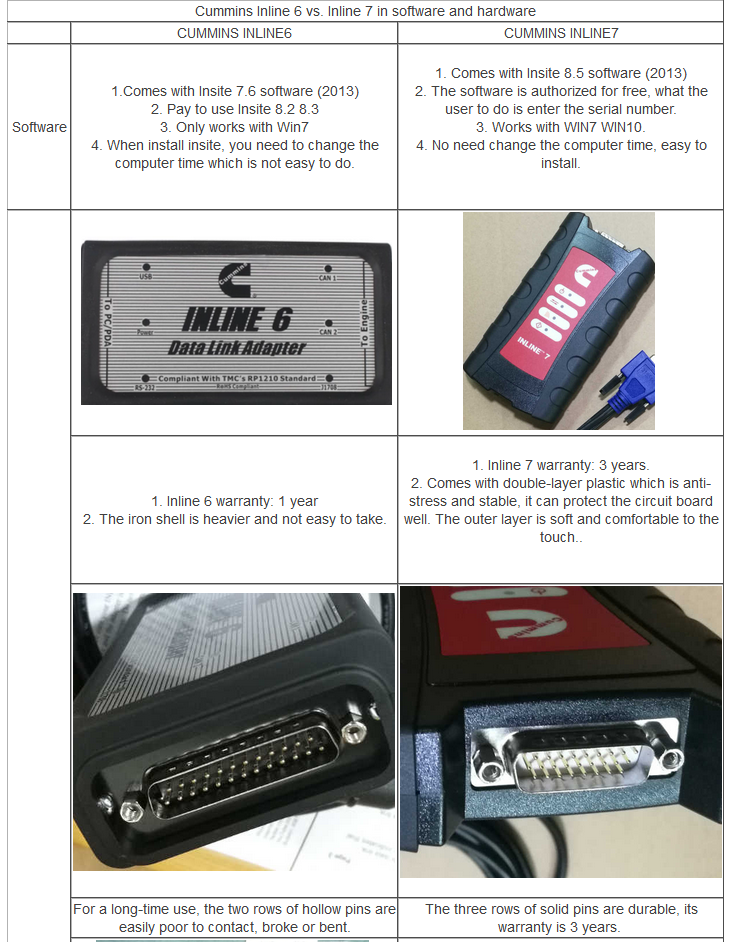
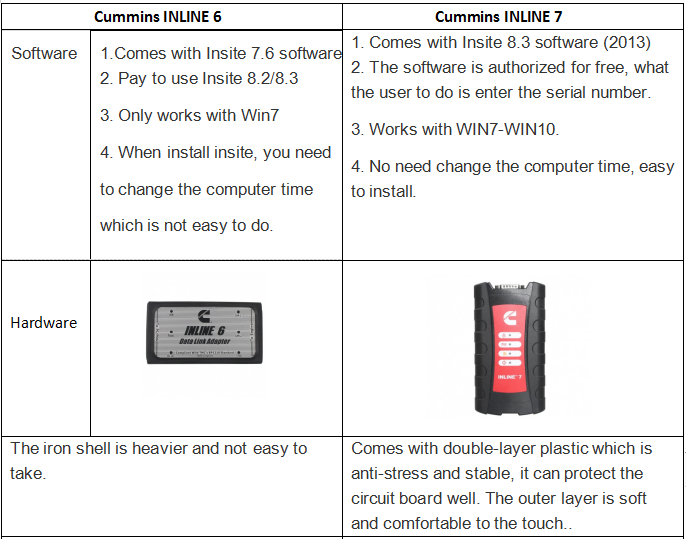
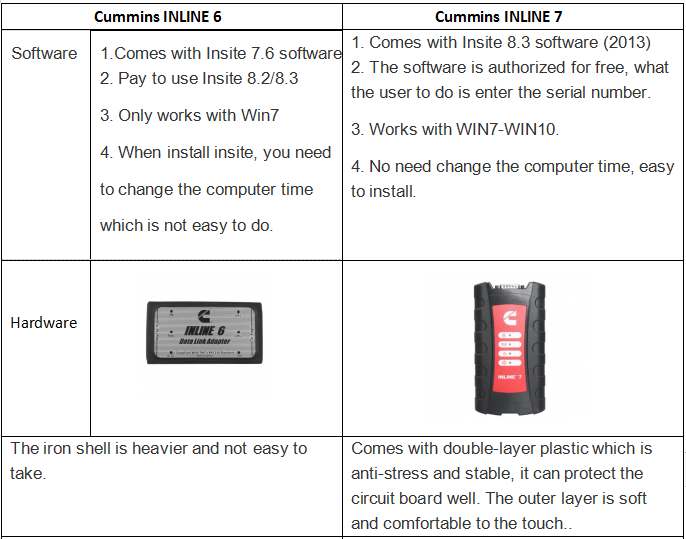
1.1

1.2

http://autotool.biz/2021/01/04/cummins-inline-6-vs-cummins-inline-7-in-software-and-hardware/


2020年12月17日星期四

What is difference of Cummins Inline 6 VS Cummins Inline 7?


New Cummins engine diagnostic tool Cummins INLINE 7 Data Link Adapter has a faster processor, more robust algorithms, larger memory buffers and more sophisticated filtering than previous models while simultaneously accessing multiple vehicle data channels. INLINE 7 supports USB, WiFi and Bluetooth technologies in a single device. INLINE 7 communicates with your PC and is designed for future capability with mobile products.

The Cummins INLINE 7 DataLink Adapter is designed to function with a wide array of Cummins, OEM and third-party service and information tools, including the following:
Cummins INSITE
Cummins PowerSpec
Detroit Diesel Diagnostic Link
CAT Electronic Technician (On-Highway only)
Navistar® -ServiceMaxx Fleet Pro
Volvo PTT
VCAD Elite Mack/Volvo
V-Mac Service Tools
Allison DOC® For PC Service Tool
Allison DOC® for Fleets (1000/2000/3000/4000)
Eaton ServiceRanger
Bendix ACom
WABCO Toolbox
Freightliner ServiceLink
International DLB, Intune, and IPC v2.02
International ServiceMaxx
PF-Diagnosis
and many more!

 
Cummins INLINE 7 DataLink Adapter has a faster processor, more robust algorithms, larger memory buffers and more sophisticated filtering than previous models while simultaneously accessing multiple vehicle data channels. And we also have Cummins inline 6,what is the difference?here we have comparison between them.

9-1

Cummins INLINE 7 Package List:
1pc x Cummins INLINE 7 Data Link Adapter
1pc x DB26Pln-OBDll Cable
1pc x USB Cable
1pc x DB26/2Pin/3Pin Cable
1pc x DB26/9Pin Data Link Cable
1pc x 3Pin Connector
1pc x Software Compact U disk

2020年12月13日星期日

About Cummins INLINE 7 DataLink Adapter


Cummins INLINE 7 DataLink Adapter

Cummins INLINE 7-1

Turbocharge your Electronic Control Module downloads and uploads with Cummins new INLINE 7 Datalink Adapter. INLINE 7 has a faster processor, more robust algorithms, larger memory buffers and more sophisticated filtering, while simultaneously accessing multiple vehicle data channels.

INLINE 7 supports USB, WiFi and Bluetooth technologies in a single device, and communicates with your PC. It’s designed for future capability with mobile products.
ONE ADAPTER. MANY APPLICATIONS.

The INLINE 7 Datalink Adapter is designed to function with a wide array of Cummins, OEM and third-party service and information tools, including Cummins INSITE™ and Cummins PowerSpec.
INDUSTRIAL-STRENGTH DESIGN.

Cummins INLINE 7 Datalink Adapter incorporates strain relief secure cables for a robust connection. The rugged carrying case provides extra protection for the most demanding service environments. The main unit comes with a full one-year warranty against software and hardware malfunction.
EVERY DETAIL. COVERED.

Everything you need is included in the complete INLINE 7 kit, including locking USB cable, 6-Pin and 9-Pin Deutsch Wye adapter with security chip, and rugged storage case.

INLINE 7 is fully compliant with the Technology and Maintenance Council’s RP1210 standard. It supports three simultaneous CAN connections and offers baud rates of 250k, 500k and 1 megabaud. INLINE 7 also supports several other protocols such as J1708, J1587, ISO 15765, ISO 9141 (K and L line).
www.cnautotool.com

2020年11月30日星期一

How to use Cummins INLINE 7 Insite 8.3 software?


New Cummins engine diagnostic tool Cummins INLINE 7 Data Link Adapter has a faster processor, more robust algorithms, larger memory buffers and more sophisticated filtering than previous models while simultaneously accessing multiple vehicle data channels. INLINE 7 supports USB, WiFi and Bluetooth technologies in a single device. INLINE 7 communicates with your PC and is designed for future capability with mobile products.
1.Hardware: Cummins INLINE 7 Data Link Adapter
2.Software: Cummins Insite 8.5
3.Update Method: update by CDs
4.Multi-language: English(united states)/ Chinese(simplified)/ Danish/ Dutch/ Finnish/ French/ German/ Italian/ Japanese/ Korean/ Norwegian/ Portuguese/ Russian/ Spanish/ Swedish/ Turkish
5.Suggest Operating System: Win7 32 Bit System
6.Connection Method: WIFI/ Bluetooth/ USB

What is the difference between Cummins INLINE 6 and Cummins INLINE 7?

9-1

How to use Cummins INLINE 7 Insite 8.3 software?

Inline7 runs the same driver as Inline6

Software activation is done via server. Need to confirm by server and it may take some time, after success, the software is combined with your computer.

Do not directly open the Inline 8.3 after installed, you need to go through the server software and use Inline 8.3.

After Inline 8.3 is authorized successfully, users can use 3 years for free for 70 times, generally the user is supposed to get authorization every month (that is within 3 years, after the times is used up, users can get authorization by themselves). After 3 years, you need to pay extra license.

5. After activation, users are not allowed to change laptop motherboard, RAM and CPU. If you change them, you have to submit the Inline 7 serial number to the seller for activation.

The Calibrations in the Inline 7 U disk can be used for 6 months only, after 6 months later you can search “Inline Calibrations” online and download to use.

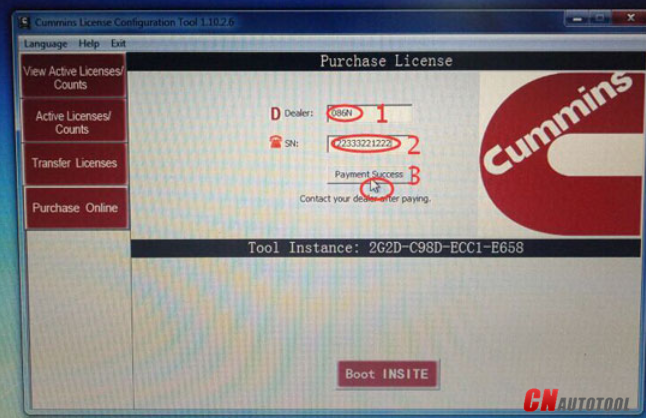
7. If you install Chinese version insite 8.3, then you have to run “Cummins License Configuration tool” in Chinese; if you choose the other language to install insite 8.3, then run the “Cummins License Configuration tool” in English, because the dealer code is not the same.

Chinese dealer code: 010C

English dealer code: 086N

After input Dealer code and serial number, please click on ” Payment success”, then provide the dealer with the serial number for processing in the server. When it is done, click on ” Payment success” again and you will receive a message indicating success.

9-2