2017年10月17日星期二

Cat Caterpillar ET 2017A V1.0 Software Caterpillar Electronic Technician With 1 Time Free Activation

Cat Caterpillar ET 2017A V1.0 Software Caterpillar Electronic Technician With 1 Time Free Activation
Top 3 reasons to get Caterpillar ET 2017A:
1. Latest Caterpillar ET Software to work with CAT/CAT3 Truck Scanner
2. With one free activation, can send software online
3.Support Multi-languages
2017A Cat ET software as OBD Scanner Cat Caterpillar ET 2015A Software update version, 2017A Caterpillar Electronic Technician softwarer With CAT ET 3 Cat caterpillar adapter 3 support caterpillar diagnostic till 2017.
5-1
Cat et Caterpillar Electronic Technician Software 2017A V1.0:
Type of catalogue: Caterpillar Electronic Technician Diagnostic Software
Make: Caterpillar
Region: WorldWide all region
Inclusive languages: English, Chinese, Danish, French, German, Italian, Japanese, Portuguese, Russian, Spanish
Amount of disks: 422 Mb, 1 CD
Operating System: Windows 7 32 bit, Wnidows 7 64 bit, Windows 8/8.1 32 bit, Windows 8/8.1 64 bit, Windows 10 32 bit, Windows 10 64 bit.
5-2
kindly note, we will remote help customer installed and activation for 1 laptop by Teamviewer!
2017A Cat et Diagnostic Software PC Requirements:
Recommended Configurations:
PC containing a 2.0 GHz dual-core processor
3GB RAM
3GB of available hard disk drive
DVD-ROM drive
15.4 inch XGA Screen (1280×1024 compatible)
Microsoft Windows? 7 Professional or Windows 8 Professional, Windows 10 Professional (Not tested with Home Edition) (Note: Windows 8 RT is not supported)
RS232 port with 16550AF UART or compatible (for use with Comm Adapter II)
USB 1.1 or 2.0 port (for use with Comm Adapter 3)
Ethernet RJ45 connector
Built in pointing device or mouse
For security purposes, Microsoft Internet Explorer version 9 or newer is recommended.
Note: The most recent version of Microsoft Internet Explorer may not be validated to work with the service tool.
Caterpillar ET 2017A Electronic Technician Diagnostic Software
Caterpillar ET Software 2017A Function:
This diagnostic app allows you to:
View active and logged diagnostics.
View events where irregularities occurred and were logged by the ECM.
View the status of a group of parameters (temperatures, pressures, etc.) simultaneously.
Record and log performance data.
Graph a group of status parameters.
View the current configuration of an ECM.
Change ECM configurations.
Perform diagnostic tests.
Perform calibrations.
Print reports and diagnostic results.
Please keep in mind that some ecm settings for example, speed limit requires factory password. The factory password generator is not included in this application
Package Includes:
1pc x Caterpillar ET 2017A v1.0 CD  (Can choose to send online 432MB)

2017年10月15日星期日

2017A Cat ET software

2017A Version CAT Caterpillar ET Diagnostic Adapter III PLUS DELLd630 laptop (Real Caterpillar ET3 Adapter III)we will install the software before ship, so you can get it work directly after you receive it.
2017A Cat ET software as Cat Caterpillar ET 2015A Software update version, 2017A Caterpillar Electronic Technician softwarer With CAT ET 3 Cat caterpillar adapter 3 support caterpillar diagnostic till 2017.
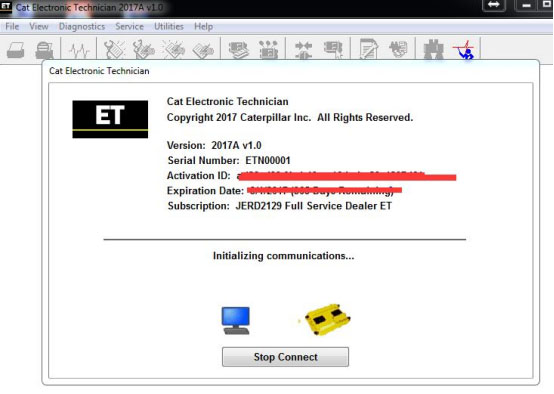
Cat et Caterpillar Electronic Technician Software 2017A V1.0:
Type of catalogue: Caterpillar Electronic Technician Diagnostic Software
Make: Caterpillar
Region: WorldWide all region
Inclusive languages: English, Chinese, Danish, French, German, Italian, Japanese, Portuguese, Russian, Spanish
Caterpillar ET Software 2017A Function:
   This diagnostic app allows you to:
View active and logged diagnostics.
View events where irregularities occurred and were logged by the ECM.
View the status of a group of parameters (temperatures, pressures, etc.) simultaneously.
Record and log performance data.
Graph a group of status parameters.
View the current configuration of an ECM.
Change ECM configurations.
Perform diagnostic tests.
Perform calibrations.
Print reports and diagnostic results.
Please keep in mind that some ecm settings for example, speed limit requires factory password. The factory password generator is not included in this application
   Package :
1.Used Dell D630 laptop
2.Real CAT et3 Comm Adapter III(it’s best quality cat et 3,not adapter 2,please check Communication port)
3.USB Cable (From device to your computer)
4.J1939/J1708 Cable (from device to your truck)

2017年10月13日星期五

BMW ICOM A2 Diagnostic & Programming For BMW ICOM A2+B+C 2016.07 Engineers Version


BMW ICOM A2+B+C is upgrade of BMW ICOM, ICOM A2 is Second generation of BMW ISTA Diagnose and programming system. Support both new and old BMW vehicles.

BMW ICOM A2:

f:id:luzey88cn:20171013161655j:plain
Software Version : 2016.07
ISTA/D (ISID /DiagnosticISTA-D 3.55.31 ISTA-P 3.59.0.600
VIN: 2016.06.15

BMW ICOM :
1. Support Multi-language: American English, British English, German, Spanish, French, Italian, Polish, Portuguese, Turkish, Czech, Swedish, Dutch, Indian, Greek, Russian, Japanese, Korean, Thai, Simplified Chinese and Traditional Chinese

2. Hardware Version: ICOM Application-01.40.05
3. Support Vehicles: BMW Cars, BMW Motorcycle, Rolls-Royce, Mini Cooper
4. Support BMW All Series Diagnose and Programming

f:id:luzey88cn:20171013161746j:plain

BMW ICOM A2+B+C Function:

* Interface A2 – OBD diagnostic supporting MOST, D-CAN and K-CAN protocols.
* Interface B – diagnostic via MOST bus, and have connection to A-interface via USB connection.
* Interface C – 20-pin cable for old models.

BMW ICOM A2+B+C Special Features Compared with ICOM :
* The modified ICOM A2 for vehicles with OBD access receives a significantly more powerful processor and more storage capacity.Robust aluminium case will help to avoid damage when using in harsh environments.
* To protect the MOST connector, the ICOM B for vehicles with optical MOST access will be equipped with a soft cover made of rubber instead of the former plastic cap.
* The ICOM C for old series with a diagnostics socket will be additionally equipped with an approx. 20 cm long cable, which facilitates the connection of the ICOM A2 and makes storage in the engine compartment easier.


FAQ of ICOM A2:

Q1: Is there any diagnostic equipment can do BMW530 DA 2003 ? It is better in French
A1: Try to use the BMW ICOM A2

Q2: Does the BMW ICOM A2 have the installation manual?
A2: Inset the hard disk into the computer and input password BMW, you’ll find the installation manual.

Q3: BMW ICOM A2 (SP168-B) can do the BMW old car before 2000?
A3: You can do the old BMW car, if the car can not be done, then try for a few more cars

Q4: 2013 New BMW ICOM A2 + B + C Diagnostic & Programming Tool (SP168-B) can be programmed to control template EGS?
A4: Yes The entire vehicle control unit can be programmed

2017年10月12日星期四

The similarity and difference among C3,C4 and C5


Mercedes Benz C5 Xentry Connect diagnostic interface, produced by French ACTIA Company and equipped with Panasonic Xentry-Tab, can test Engine / Transmission / air conditioning /SRS/ABS/ anti-theft system and OBD-II system.Benz C5 at Autonumen.com can provide complete diagnosis for the newest hybrid W222. And it has a qualitative improvement in hardware and software by authorization of diagnostic interface to control the software.

The new product concept and brand combination for hardware and software components will be the next step towards an integrated After-Sales System environment with future-oriented diagnostic solutions. 100% Original second-hand Mercedes BENZ C5 Star diagnostic system manufactured by French ACTIA tech is available in autonumen.com.

Mercedes benz star scanner is a very popular auto scanner in the market. However,Many customer are confused to choose when they want to buy one, because there is four version of mb star:Mercedes Benz star c3,MB STAR C4, Benz Star SD Connect Compact 4 C4 and super MB benz star C5. So now,i will summarize their similarity and difference,hope it will helpful for customers to choose.

Similarity:
1.Benz star C3/C4 and MB star sd connect c4,Super MB Star c5 use same software.
2.For the hardware, Benz star C3/C4/C5 is same function in diagnosing.

Difference:
1.For the functions, MB star c3 and c4 are almost the same,C4 can do all the works what C3 does and it is the replacement of Compact C3.
Just benz star c4 size is small and weight is light,much convience and the anti‐interrupting ability is better.
One more thing, as customer feedback, the advantage of c3 is can do trucks best.

2017年10月11日星期三

Launch X431 Pro Mini Diagnostic Tool with Bluetooth Update Online Powerful Than Diagun


Launch X431 Pro Mini Description:
Launch X431 Pro Mini is a stylish Android-based vehicle trouble diagnostic tool. It inherits from LAUNCH’s advanced diagnosing technology and is characterized by covering a wide range of vehicles, featuring powerful functions, and providing precise test result.
Through the simple Bluetooth communication between the VCI module and Launch X431 Pro Mini, it achieves full car model and full system vehicle trouble diagnosis, which includes Reading DTCs, Clearing DTCs, Reading Data Stream,Actuation Test and Special Functions.
Moreover, it supports Wi-Fi connection, which enables you surf the Internet,update the diagnostic tools online and perform remote diagnosis etc, getting your job fixed faster and easier.


 Launch X431 Pro Mini Bluetooth Features:
1. Diagnostic Tool:
A. Diagnose
Diagnose the electronic control system of prevailing vehicle models covering Asian, European, American and Chinese. Diagnosis functions include: Read DTCs, Clear DTCs, Read data stream, Special functions etc.
Specially designed for Android platform with clear and user-friendly interface.
Via Bluetooth, it is simple for the VCI module to communicate with X-431 PRO MINI.
Equipped with an exclusive X-431 PRO MINI protective sleeve to prevent it from being damaged.
B. One-click Update: Lets you update your diagnostic software more efficiently. To obtain better function and update service, advise you update the software regularly.
C. Repair Data: provides abundant automotive handbook, repair case and wiring diagrams for reference and retrieval.
D. Remote Diagnosis: configures X-431 PRO MINI as an I/M(Instant Messaging) tool, which enables technicians to exchange repair experience and perform remote assistance more conveniently.
2. Browser: built-in Wi-Fi module makes surfing on the internet freely.
3. Email: allows you to send and receive emails.
4. Settings: to configure your personalized X-431 PRO MINI through it.
5. Applications: other android based applications can be customized to install or uninstall.
6. Special functions:
Launch X-431 PRO MINI can program and code the electronic control system of prevailing vehicle models, also perform special functions, including:
Oil Reset Service
Steering Angle Calibration
Electronic Parking Brake Reset
Battery Register / Battery Maintenance
ABS Bleeding
Electronic Throttle Position Reset / Learn
Diesel Particulate Filter (DPF) Regeneration
Tire Pressure Monitor System Reset
Gear Learning
Immobilizer Matching
Fuel Injector Coding
7. Wide Vehicle Coverage
Launch X431 Pro Mini supports all electronic control systems on 12V EFI models, incl. more than 150 European, American and Asian models like Maserati, Ferrari, Rolls Royce, Bentley, Mercedes-Benz, BMW, Audi.Diagnose the electronic control system of prevailing vehicle models covering Asian, European, American and Chinese. It achieves full car model and full system vehicle trouble diagnosis
8. Powerful Diagnosis: Accurate
Launch has rich experience of automotive diagnostic technology (for more than 20 years). It also develops original equipments for a vast majority of Chinese brands of automotive factories, so that Auto Scanner Tools X-431 PRO MINI performs diagnosis (fault code, data stream, action test and other functions) as the dealership.
9. Powerful Diagnosis: Fast
X-431 PRO MINI can perform full system diagnosis and one button to clear codes at a high speed. It’s easy to operate.
10. Data Stream record and playback
Record and playback the data stream help you analyze the trouble when driving and solve it.
11. VINSCAN
Automatic scan (OBD VIN) and manual input (INPUT VIN) are available.
12. View History
Generally once a vehicle diagnosis is performed, X-431 PRO MINI will record the every details of diagnostic process. The History function provides a quick access to the tested vehicles and users can resume from the last operation, without the necessity of starting from scratch.
13. Maintenance Help:
Including: How-to Videos, operation skills and user manual, Q&A, Quick start guide etc.

X-431 PRO MINI handset

1 VCI module
2 Reset hole
3 Rear camera
4 Camera flash
5 Slot for VCI module For housing the VCI module.
6 POWER/Screen lock key In Off mode, press it to turn X-431 PRO MINI on; In On mode, turn X-431 PRO MINI off with long press or lock screen with short press.
7 Carry strap
8 Air intake vent
9 USB/Charging port To connect to the power adaptor for charging.
10 Microphone
11 LCD screen
12 VOLUME +/- Key To adjust the volume. To print the screen, hold and press the POWER and VOLUME – key until a snapshot pops up on the screen.
The captured snapshot is saved in the “Screenshots” folder.
13 Speaker
14 Front camera
15 Earphone Jack


Launch X431 Pro Mini Package Includes:
1pc x X-431 PRO MINI tablet
1pc x Password envelope
1pc x VCI module (For connecting OBD II vehicles)

The X-431 PRO MINI Introduction


f:id:annali198619:20171011183822j:plain
The Auto key Programmer X-431 PRO MINI is a new diagnostic tool released by Launch. It is based on Android OS and uses a touchscreen interface to allow you to access its rich set of features.
The Launch X431 series can do full system diagnosis, like the Launch X431 Pro Mini or X431 IV, but includes many new tests and special functions.
The Launch X431 Pro Mini has everything you need, including the X431 Pro Mini, 14 vehicle connectors, shockproof storage case, and one year of software updates!
The pro kit sold here comes with all of the adaptors for 1996 and newer vehicles, software for Domestic, Asian, & European vehicles, and all the accessories needed to get the job done.
Support: Feel free to email us with any pre-sale (or after-sale) questions. As the fully-authorized Launch distributor, we have the knowledge and
positive attitude to help you with any questions you may have.
Details
Free internet update for one year!
Display Screen: 6.9 Inch HD High Resolution LCD (touchscreen)
Front and rear facing cameras
OS: Android 5.1
Processor: Quad core 1.3ghz, with 2GB of processor memory and 16GB of on-board storage
Tablet Power: 3000mAh rechargeable lithium polymer batter
Connectivity: Bluetooth 4.1, WLAN 802.11b/g/n
Languages: English, Arabic, Polish, German, Russian, French, Finnish, Dutch, Czech, Portuguese,
Spanish, Hungarian, Italian, Japanese, Swedish, Turkish, Greek, Danish, Korea
Dealer Code for Registration: 755D
Updating Website:   www.cnautotool.com
Package Contents
1 * Launch X-431 Pro Mini Tablet
1 * VCI Module
1 * OBDII Extension Cable
1 * OBDII Adaptor
10 * DBSCar Connectors
1 * Battery Clamps Cable
1 * User Manual
1 * Password Envelope
1 * USB Power Adapter
1 * USB Cable
1 * User Manual

2017年10月8日星期日

How to Pair a Bluetooth Cell Phone with Your Car

01 Handsfree Calling with Bluetooth
6-1

Check Your Equipment For Bluetooth Compatibility

Bluetooth is a wireless technology that allows the creation of secure local networks, which makes it perfect for short-range connections between devices like your phone and your car’s head unit, or your phone and a hands-free Bluetooth car kit or headset.

The process of setting up a Bluetooth network is referred to as “pairing,” because the network consists of just one “pair” of devices. Although it is often possible to pair one device to multiple other devices, each connection is secure and unique to one particular pair of devices.

In order to successfully pair a cell phone to a car stereo, both the phone and the head unit must be Bluetooth compatible.

Most infotainment systems offer Bluetooth connectivity, which allows for seamless handsfree calling. This same functionality is also offered by both aftermarket and Auto Diagnostic tool, and you can add it into older systems with a handsfree car kit.

In order to use your cellphone for handsfree calling, you’ll need:

a Bluetooth-enabled cell phone
a Bluetooth-enabled infotainment system or car audio system
the PIN number for your infotainment or audio system

Additionally, it can be helpful to have:

phone mount
12-volt charger

02 Verify That Your Phone Has Bluetooth, and Turn It On

6-2
Most Phones Have Bluetooth But Check First

The exact process of pairing a phone to a car audio system varies depending on the specific phone and the way the infotainment or audio system is set up. Most of these steps will translate in one way or another regardless of what type of phone you have, and the car you drive, but the first step, in any case, is to make sure that you’re working with the right tools.

With that in mind, the first step to pairing a phone with a car stereo is to verify that your phone actually has Bluetooth.

You can go ahead and turn your phone on at this point unless it was already on since you’ll have to either dive into the menus or dig out your owner’s manual to verify that you have
OBD II Scanner Tools.

The symbol for Bluetooth looks like a pointy capital B overlayed with an X. If you’re familiar with runes, it’s actually a bind rune made up of “hagall” and “bjarkan,” owing to the Scandinavian origin of the technology. If you see this symbol anywhere in the status area of your phone or the menus, then your phone probably has Bluetooth.

While you’re going through the menus to make sure you have Auto Diagnostic tool, you’ll also want to make note of where the “make phone discoverable” and “search for devices” options are since you’ll need those in a little while. Most phones will only remain discoverable for a couple of minutes, though, so you don’t actually have to activate that yet.

If your head unit or phone doesn’t have Bluetooth, there are other ways to get Bluetooth in your car.

03 Infotainment or Audio System Phone Settings

6-3

Get Your Car Ready to Pair

Some vehicles have a button that you can press to start the pairing process, and others allow you to simply say a voice command, such as “pair Bluetooth.” Others are a little more complicated, in that they require you to navigate through the infotainment system. In this case, the next step is to navigate to the telephone settings in the infotainment system menu.

If you can’t find a “pair Bluetooth” button, and your car doesn’t support voice commands, you may need to dig out the owner’s manual to find out exactly how to get your infotainment system or car stereo in the mood to pair.

04 Search for Your Phone or Set the System to Discoverable

6-4

Pair Your Cell Phone and Car

This is the step where you’ll need to know where your “set to discoverable” and “search for devices” options are on your phone. Depending on how your audio or infotainment system is set up, either your car will be searching for your cell phone, or the cell phone will be searching for your car. In either case, both devices will have to be ready to search or ready to be found within the same window of two minutes or so.

In this case, we navigate to “Bluetooth” in the infotainment system phone settings menu in order to get the ball rolling. Your infotainment system or Bluetooth car stereo may be a little different in the particulars, but the basic idea should be the same.

05 Set to Discoverable or Scan for Devices

6-5

Now It’s Up to Your Phone to Pair Successfully

After your car is either looking for your phone or ready to be found, you’ll have to switch over to your phone. Since you’re dealing with a limited amount of time to complete this step, it’s a good idea to already have your phone in the correct menu. The exact steps, however, will depend on how your head unit works.

If the car is looking for your phone, you’ll want to set your phone to “discoverable.” This allows the car to ping your phone, find it, and pair up.

If your car’s head unit itself is set to “discoverable,” then you’ll need to have your phone “scan for devices.” This will allow it to look for any devices (including your car audio system, wireless keyboards, and other Bluetooth peripherals) in the area that is available for connection.

While you should be able to move along in the pairing process by either setting your phone to discoverable or having your phone search for devices, it may not work at first. This may be due to the time constraints, and one of the devices giving up before the other is ready to pair, so it’s always a good idea to try a few times before throwing in the towel.

There are a number of other reasons that Bluetooth won’t pair, from interference to total Bluetooth incompatibility, so don’t give up if it doesn’t work perfectly the first time.

06 Select a Bluetooth Device to Pair
6-6

Find the Handsfree Device and Choose It

If your phone successfully finds your car’s handsfree calling system, it will show up in the list of available devices. In this case, the Toyota Camry’s handsfree calling system is simply called “hands-free” on the list.

After you select the device, you’ll have to put in a passkey before you can successfully pair the devices. Each car comes with a preset passkey, which you can typically find in your user’s manual. If you don’t have the manual, you can typically set your own passkey from the phone settings menu in your infotainment system. And if that doesn’t work, your local dealer may be able to provide you with the original passkey.

A lot of Bluetooth devices simply use “1234,” “1111,” and other simple passkeys by default.

07 Success!

6-7

If you put in the right passkey, your phone should successfully pair with the handsfree calling system in your car. If it doesn’t, then can repeat the steps you already took and make sure that you put the right passkey in. Since it’s typically possible to change the default passkey, you may find that the default one doesn’t work in some preowned vehicles. In that case, you can try pairing again after you’ve changed to passkey to something else.

08 Send and Receive Your Calls Hands-Free

6-8

Test Your Handsfree Calling Setup

After you successfully pair your Bluetooth phone with your car, you can go ahead and make sure that everything is working properly. Depending on the specifics of your vehicle, you can go about that in a couple different ways. In the case of this Toyota Camry, there are buttons on the steering wheel that activate and shut down the handsfree calling mode. Calls can be placed by accessing the phone through the infotainment system touch screen.